Load testing tools vs monitoring tools

So, what’s the difference between a load testing tool (such as http://loadimpact.com/) and a site monitoring tool such as Pingdom (https://www.pingdom.com/). The answer might seem obvious to all you industry experts out there, but nevertheless it’s a question we sometimes get. They are different tools used for different things, so an explanation is called for.

Load testing tools

With a load testing tool, you create a large amount of traffic to your website and measure what happens to it. The most obvious measurement is to see how the response time differs when the web site is under the load created by the traffic. Generally, you want to find out either how many concurrent users your website can handle or you want to look at the response times for a given amount of concurrent users. Think of it as success simulation: What happens if I have thousands of customers in my web shop at the same time. Will it break for everyone or will I actually sell more? Knowing a bit about how your website reacts under load, you may want to dig deeper and examine why it reacts the way it does. When doing this, you want to keep track of various indicators on the web site itself while it receives a lot of traffic. How much memory is consumed? How much time spent waiting for disk reads and write? What’s the database response time? etc. Load Impact offers server metrics as a way to help you do this. By watching how your webserver (or servers) consume resources, you gradually build better and better understanding about how your web application can be improved to handle more load or just to improve response times under load. Next up, you may want to start using the load testing tool as a development tool. You make changes that you believe will change the characteristics of your web application and then you make another measurement. As you understand more and more about the potential performance problems in your specific web application, you iterate towards more performance.

Monitoring tools

A site monitoring tool, such as Pingdom (https://www.pingdom.com/), might be related, but is a rather different creature. A site monitoring tool will send requests to your web site on a regular interval. If your web site doesn’t respond at all or, slightly more advanced, answers with some type of error message, you will be notified. An advanced site monitoring tool can check your web site very often, once every minute for instance. It will also test from various locations around the world to be able to catch network problems between you and your customers. A site monitoring tool should be able to notify you by email and SMS as soon as something happens to your site. You are typically able to set rules for when your are notified and for what events, such as ‘completely down’, ‘slow response time’ or ‘error message on your front page’ In recent years, functionality have gotten more advanced and beside just checking if your web site is up, you can test entire work flows are working, for instance if your customers can place an item in the shopping card and check out. Most site monitoring tools also include reporting so that you can find out what your service level have been like historically. It’s not unusual to find out that the web site you thought had 100% uptime actually has a couple of minutes of down time every month. By proper reporting, you should be able to follow if downtime per month is trending. Sounds like a good tool right? We think it deserves to be mentioned that whenever you detect downtime or slow response time with a site monitoring tool, you typically don’t know why it’s down or slow. But you know you have problems and that’s a very good start.

One or the other?

Having a bit more knowledge about the difference between these types of tools, we also want to shed some light on how these can be used together. First of all, you don’t choose one or the other type of tool, they are simply used for different things. Like measuring tape and a saw, when your building a house you want both. We absolutely recommend that if you depend on your web site being accessible, you should use a site monitoring tool. When fine tuning your web site monitoring tool, you probably want to set a threshold for how long time you allow for a web page to load. If you have conducted a proper load test, you probably know what kind of response times that are acceptable and when the page load times actually indicates that the web server has too much load. Then, when your site monitoring tool suddenly begins to alert you about problems you want to dig down and understand why, that’s when the load testing tool becomes really useful. As long as the reason for your down time can be traced back to a performance problem with the actual web server, a load testing tool can help you a long way. Recently, I had a client that started getting customer service complaints about the web site not working. First step was to set up a web site monitoring tool to get more data in place. Almost directly, the web site monitoring tool in use was giving alerts, the site wasnt always down, but quite often rather slow. The web shop was hosted using standard web hosting package at one of the local companies. I quickly found out that the problem was that the web shop software was just using a lot of server resources and this was very easy to confirm using a load testing tool. Now the client is in the process of moving the site to a Virtual Private Server where resources can be added as we go along. Both types of tools played an important role in solving this problem quickly. Questions? Tell us what you want to know more about in the comments below.
Top 5 ways to improve WordPress under load

WordPress claims that more than 63 million web sites are running the WordPress software. So for a lot of users, understanding how to make WordPress handle load is important. Optimizing WordPress ability to handle load is very closely related to optimizing the general performance, a subject with a lot of opinions out there. We’ve actually talked about this issue before on this blog. Here’s the top 5 things we recommend you do to fix before you write that successful blog post that drives massive amounts of visitors.

#1 – Keep everything clean and up to date

Make sure that everything in WordPress is up to date. While this is not primarily a performance consideration, it’s mostly important for security reasons. But various plugins do gradually become better and better with performance issues, so it’s a good idea to keep WordPress core, all plugins as well as your theme up to date. And do check for updates often, I have 15 active plugins on my blog and I’d say that there’s 4-6 upgrades available per month on average. The other thing to look out for is to keep things clean. Remove all themes and plugins that you don’t currently use. Deactivate and physically delete them. As an example, at the time of writing this. my personal blog had 9 plugins that needed upgrading and I had also let the default WordPress theme in there. I think it’s a pretty common situation so do what I did and make those upgrades.

#2 – Keep the database optimized

There are two ways that WordPress databases can become a performance problem. First is that WordPress stores revisions of all posts and pages automatically. It’s there so that you always can go back to a previous version of a post. As handy as that can be, it also means that the one db table with the most queries gets cluttered. On my blog, I have about 30 posts but 173 rows in the wp_posts table. For any functionality that lists recent posts, related posts and similar, this means that the queries takes longer. Similary, the wp_comments table keeps a copy of all comments that you’ve marked as spam, so the wp_comments table may also gradually grow to become a performance problem. The other way that you can optimize the WordPress database is to have mysql do some internal cleanup. Over time the internal structure of the mysql tables also becomes a cluttered. Mysql provides an internal command for this: ‘optimze table [table_name]’. Running optimize table can improve query performance a couple of percent with in turn improves the page load performance. Instead of using phpmyadmin to manually delete old post revisions and to run the optimize table command, you should use a plugin to do that, for instance WP Optimize. Installing Wp optimize on my blog, it told me that the current database size was 7.8 Mb and that it could potentially remove 1.3 Mb from it. It also tells me that a few important tables can be optimized, for instance wp_options that is used in every single page request that WordPress will ever handle.

#3 – Use a cache plugin

Probably the single most effective way to improve the amount of traffic your WordPress web site can handle is to use a cache plugin. We’ve tested cache plugins previously on the Load Impact blog, so we feel quite confident about this advice. The plugin that came out on top in our tests a few years ago was W3 Total Cache. Setting up W3 Total Cache requires some attention to details that is well beyond what other WordPress plugins typically requires. My best advice is to read the installation requirements carefully before enabling the page cache functionality since not all features will work on all hosting environments. Read more about various WordPress cache plugins here, but be sure to read the follow up.

#4 – Start using a CDN

By using a CDN (content delivery network), you get two great performance enhancements at once. First of all, web browsers limit the number of concurrent connections to your server, so when downloading all the static content from your WordPress install (css, images, javascripts etc.), they actually queue up since not all of them is downloaded at the same time. By placing as much content as possible on a CDN, you work around this limitation since your static content is now served from a different wen server. The other advantage you get is that CDN typically have more servers than you do and there’s a big chance that (a) one of their servers is closer to the end user than your server and (b) that they have more bandwidth than you do. There are a number of ways you can add CDN to your WordPress install. W3 Total Cache from #3 above handles several CDN providers (Cloudflare, Amazon, Rackspace) or even lets you provide your own. Another great alternative is to use the CloudFlare WordPress plugin that they provide themselves.

#5 Optimize images (and css/js)

Looking at the content that needs to be downloaded, regardless if it’s from a CDN or from your own server, it makes sense to optimize it. For css and js files, a modern CDN provider like CloudFlare can actually minify it for you. And if you don’t go all the way to use an external CDN, the W3 Total Cache plugin can also do it for you. For images you want to keep the downloaded size as low as possible. Yahoo! has an image optimizer called Smush.it that will drastically reduce the file size of an image, while not reducing quality. But rather than dealing with every image individually, you can use a great plugin name WP-Smushit that does this for you as you go along.

Conclusion and next step

There are lots and lots of content online that will help you optimize WordPress performance and I guess it’s no secret that these top 5 tips are not the end of it. In the next post, I will show you how a few of these advises measures up in reality in the LoadImpact test bench.

Announcing the Load Impact API beta

We are pleased to announce the Load Impact API beta!

the developer.loadimpact.com API documentation site

For people who do not know what an API is, or what it is good for, our API allows you to do basically everything you can do when logged in at loadimpact.com, like configure a load test, run a load test, download results data from a load test. But the API can be used by another program, communicating with Load Impact over the Internet. This means that a developer can write an application that will be able to use our API functionality to configure and run load tests on the Load Impact infrastructure – and this can happen completely without human involvement, if the developer chooses it.

The API is very useful for companies with a mature development process, where they e.g. do nightly builds – and run automated tests – on their software. The API allows them to include load tests in their automated test suites, and in that way monitor the performance and scalability of their application while it is being developed. This is useful in order to get an early indication that some piece of newly produced code doesn’t perform well under load/stress. The earlier such problems are detected, the less risk of developers wasting time working on code tracks that don’t meet the performance criteria set up for the application.

The API can also be used by other online services or applications, that want to include load testing functionality as part of the service/product, but where it is preferable to avoid building from scratch a complete load testing solution like Load Impact. They can use our API to integrate load testing functionality as part of their own product, with Load Impact providing that functionality for them.

We have created a whole new documentation section for the API at http://developer.loadimpact.com where you can find the API reference and some code examples. We will be delighted to hear from you if you are using the API, so don’t hesitate to get in touch with us! Feedback or questions are very welcome!


Know your node.js

As part of a follow up to last months column about PHP vs Node.js, I hit some problems with Node under load. As with all technologies, Node.js does have some limitations that may or may not be a problem for your specific use case. If the last column about comparing PHP and Node.js had a deeper message, that message would be that if you want to scale you have to know your stack. To be completely clear, when I say stack I mean the layers of technology used to server http requests. One of the most common stacks out there are simply called LAMP – (L)inux (A)pache2 (M)ySQL (P)HP (or Perl). You now see a lot of references to LNMP, where Apache2 is replaced with Nginx. When building Node.js applications, things can vary a lot since node.js comes with it’s own http server. In my previous text, I used Node.js together with MySQL on a Linux box, so I guess we can dub that the LNM stack if we absolutely need to have a name for it. And when I say Know your stack. I mean that if you want to produce better than average performance numbers, you have to be better than average in understanding how the different parts in your stack works together. There are hundreds of little things that most of us never knew mattered that suddenly becomes important when things come under load. As it happens, watching your application work under load is a great way to force yourself to know your stack a little better.

Background

When testing Apache/PHP against Node.js, I found that the raw performance of Node.js as well as the ability to handle many concurrent clients was excellent. Faster and more scalable than Apache2/PHP. One reader pointed out that the test wasn’t very realistic since there was just one single resource being queried and there was no static content involved. Apache2/PHP could very well relatively better if some of the content was static. So I set up a test to check this and while running this. Node.js crashed. As in stopped working. As in would not server any more http reqeusts without manual intervention. So to keep it shord, Apach2/PHP won that round. But in the spirit of ‘know your stack’, we need to understand why Node.js crashed. The error message I got was this:

Unhandled 'error' event "events.js:71"

First of all, it took a fair amout of googling to figure out what that the error message was really about. Or, rather, the error message was saying that something happened and there’s no error handler for it. So good luck.

Fixing it.

The first indication I got via Google and Stack Overflow was that this may be an issue with Node.js before 0.8.22 and sure enough, I was running 0.8.19. So the first thing I did was upgrade to version 0.8.22. But that did not fix the problem at all (but a later and greater version is of course a nice side effect). With almost all other software involved being up to date, this actually required some structured problem solving.

Back to the drawing board

I eventually managed to trace the error message down to a ‘too many open files’ problem which is Interesting as it answers the crucial question: What went wong? This happened at roughly 250 concurrent users with a test that was accessing 6 different static files. This is what it looks like in LoadImpact:

node_failed_test

So a little depending on timing, and exactly when each request comes in, it would roughly indicate that some 1500 (6 files times 250 users) files can be open at the same time. Give or take. Most Linux systems are, by default, configured to allow relatively small number of open files, e.g. 1024. The Linux command to check this is ulimit:

$ ulimit -n
1024

1024 is the default on a lot of distros, including Ubuntu 12.10 that I was running the tests on. So my machine had 1024 as the limit but it appears that I had 1500 files open at the same time. Does this make any sense? Well, sort of, there are at least 3 factors involved here that would affect the results:

  1. Load Impact simulates real browsers (Virtual Users). A VU user only opens 4 concurrent connections to the same server even if the script tells it to download 6 resources. The other 2 resources are simply queued.
  2. Each open TCP socket counts as an open file. So each concurrent TCP connection is an open file. Knowing that our limit is 1024, that would indicate that node.js could handle up to 256 concurrent users if each user uses the maximum of 4 open connections.
  3. In our sample, the requests for static resources also opens a file and thereby occupies another file handle. This file is open for less time than the actual connection, but still, under a certain time, a single request can consume 2 open file handles.

So in theory, the limit for concurrent simulated browser users should be 256 or less. But in reality, I saw the number of concurrent users go all the way up to 270 before the Node.js process died on me. The explanation to that is more likely than anything just timing. Not all VU’s will hit the server at exactly the same time. At the end, hitting problems when running about 250 concurrent users reasons well with the open files limit being the problem. Luckily, the limit of number of open files per process is easy to change:

$ ulimit -n 2048

The next test shows real progress. Here’s the graph:

node_better_test

Problem solved (at least within the limits of this test).

Summary

Understanding what you build upon is important. If you choose to rely on node.js, you probably want to be aware of how that increases your dependency on various per process limitations in the operating system in general and max number of open files in particular. You are more affected by these limitations since everything you do takes place inside a single process. And yes. I know. There are numerous of more or less fantastic ways to work around this particular limitation. Just as there are plenty of ways to work around limitations in any other web development stack. The key thing to remember is that when you select your stack, framework, language or server, you also select all the limitations that comes with it. There’s (still) no silver bullet, even if some bullets are better out of the box than other. Having spent countless of hours with other web development languages, I think I’m in a good position to compare and yes indeed! Node.js delivers some amazing performance. But at present, it comes with a bigger responsibility to ‘Know Your stack’ than a lot of the others.

Node.js vs PHP – using Load Impact to visualize node.js efficiency

It could be said that Node.js is the new darling of web server technology. LinkedIn have had very good results with it and there are places on the Internet that will tell you it can cure cancer.

In the mean time, the old work horse language of the Internet, PHP, gets a steady stream of criticism. and among the 14k Google hits for “PHP sucks” (exact term), people will say the most funny terrible things about the language while some of the critique is actually quite well balanced. Node.js introduces at least two new things (for a broader audience). First, the ability to write server side JavaScript code. In theory this could be an advantage since JavaScript is more important than ever on the client side and using the same language on server and browser would have many benefits. That’s at least quite cool.

The other thing that makes Node.js different is that it’s completely asynchronous and event driven. Node is based on the realization that a lot of computer code actually just sits idle and wait for I/O most of the time, like waiting for a file to be written to disk or for a MySQL query to return data. To accomplish that, more or less every single function in Node.js is non-blocking.

When you ask for node to open a file, you don’t wait for it to return. Instead, you tell node what function to pass the results to and get on with executing other statements. This leads to a dramatically different way to structure your code with deeply nested callbacks and anonymous function and closures. You end up with something  like this:

doSomething(val, function(err,result){
  doSomethingElse(result,function(err,res){
    doAbra();
    doKadabra(err, res, function() {
      ...
      ...
    });
  });
});

It’s quite easy to end up with very deep nesting that in my opinion sometimes affects code readability in a negative way. But compared to what gets said about PHP, that’s very mild critique. And.. oh! The third thing that is quite different is that in Node.js, you don’t have to use a separate http(s) server. It’s quite common to put Node.js behind a Nginx, but that’s not strictly needed. So the heart of a typical Node.js web application is the implementation of the actual web server.

A fair way to compare

So no, it’s not fair to say that we compare Node.js and PHP. What we really compare is Node.js and PHP+Apache2 (or any other http server). For this article, I’ve used Apache2 and mod_php since it’s by far the most common configuration. Some might say that I’d get much better results if I had used Nginx or Lighthttpd as the http server for PHP. That’s most likely very true, but at the end of the day, server side PHP depends on running in multiple separate processes. Regardless if we create those processes with mod_php or fastcgi or any other mechanism. So, I’m sticking with the standard server setup for PHP and I think that makes good sense.

The testing environment

So we’re pitting PHP+Apache2 against a Node.js based application. To keep things reasonable, I’ve created a very (really, very) simple application in both PHP5 and Node.js. The application will get 50 rows of data from a WordPress installation and output it as a json string. That’s it, nothing more. The benefit of keeping it this simple was (a) that I didn’t have to bother about too many implementation details between the two languages and (b) more important that we’re not testing my ability to code, we’re really testing the difference in architecture between the two. The server we’re  using for this test is a virtual server with:

  • 1 x Core Intel(R) Xeon(R) CPU E5-2670 0 @ 2.60GHz
  • 2 Gb RAM.
  • OS is 64 Bit Ubuntu 12.10 installed fresh before running these tests.
  • We installed the Load Impact Server metric agent.

For the tests, we’re using:

  • Apache/2.2.22 and
  • PHP 5.4.6.
  • Node.js version 0.8.18 (built using this script)
  • MySQL is version 5.5.29.
  • The data table in the tests is the options table from a random WordPress blog.
The scripts we’re using:

Node.js (javascript):

// Include http module,
var http = require('http'),
mysql = require("mysql");

// Create the connection.
// Data is default to new mysql installation and should be changed according to your configuration.
var connection = mysql.createConnection({
   user: "wp",
   password: "****",
   database: "random"
});

// Create the http server.
http.createServer(function (request, response) {
   // Attach listener on end event.
   request.on('end', function () {

      // Query the database.
      connection.query('SELECT * FROM wp_options limit 50;', function (error, rows, fields) {
         response.writeHead(200, {
            'Content-Type': 'text/html'
         });
         // Send data as JSON string.
         // Rows variable holds the result of the query.
         response.end(JSON.stringify(rows));
      });
   });
// Listen on the 8080 port.
}).listen(8080);

PHP code:

<!--?php $db = new PDO('mysql:host=localhost;dbname=*****',     'wp',     '*****'); $all= $db--->query('SELECT * FROM wp_options limit 50;')->fetchAll();
echo json_encode($all);

The PHP script is obviously much shorter, but on the other hand it doesn’t have to implement a full http server either.

Running the tests

The Load Impact test configurations are also very simple, these two scripts are after all typical one trick ponies, so there’s not that much of bells and whistles to use here. To be honest, I was surprised how many concurrent users I had to use in order to bring the difference out into the light. The test scripts had the following parameters:

  • The ramp up went from 0-500 users in 5 minutes
  • 100% of the traffic comes from one source (Ashburn US)
  • Server metrics agent enabled
The graphics:
On the below images. the lines have the following meanings:
  • Green line: Concurrent users
  • Blue line: Response time
  • Red line: Server CPU usage

Node.js up to 500 users.

The first graph here shows what happens when we load test the Node.js server. The response time (blue) is pretty much constant all through the test. My back of a napkin analysis of the initial outliers is that they have to do with a cold MySQL cache. Now, have a look at the results from the PHP test:

Quite different results. It’s not easy to see on this screen shot, but the blue lines is initially stable at 320 ms response time up to about 340 active concurrent users. After that, we first see a small increase in response time but after additional active concurrent users are added, the response time eventually goes through the roof completely.

So what’s wrong with PHP/Apache?

Ok, so what we’re looking at is not very surprising, it’s the difference in architecture between the two solutions. Let’s think about what goes on in each case.

When Apache2 serves up the PHP page it leaves the PHP execution to a specific child process. That child process can only handle one PHP request at a time so if there are more requests than than, the others have to wait. On this server, there’s a maximum of 256 clients (MaxClients) configured vs 150 that comes standard. Even if it’s possible to increase MaxClients to well beyond 256, that will in turn give you a problem with internal memory (RAM). At the end, you need to find the correct balance between max nr of concurrent requests and available server resources.

But for Node, it’s easier. First of all, in the calm territory, each request is about 30% faster than for PHP, so in pure performance in this extremely basic setup, Node is quicker. Also going for Node is the fact that everything is in one single process on the server. One process with one active request handling thread. So thre’s no inter process communication between different instances and the ‘mother’ process. Also, per request, Node is much more memory efficient. PHP/Apache needs to have a lot of php and process overhead per concurrent worker/client while Node will share most of it’s memory between the requests.

Also note that in both these tests, CPU load was never a problem. Even if CPU loads varies with concurrent users in both tests it stays below 5% (and yes, I did not just rely on the graph, I checked it on the server as well). (I’ll write a follow up on this article at some point when I can include server memory usage as well). So we haven’t loaded this server into oblivion in any way, we’ve just loaded it hard enough for the PHP/Aapache architecture to start showing some of it’s problems.

So if Node.js is so good…

Well of course. There are challenges with Node, both technical and cultural. On the technical side, the core design idea in Node is to have one process with one thread makes it a bit of a challenge to scale up on a multi core server. You may have already noted that the test machine uses only one core which is an unfair advantage to Node. If it had 2 cores, PHP/Apache would have been able to use that, but for Node to do the same, you have to do some tricks.

On the cultural side, PHP is still “everywhere” and Node is not. So if you decide to go with Node, you need to prepare to do a lot more work yourself, there’s simply nowhere near as many coders, web hotels, computer book authors, world leading CMS’es and what have you. With PHP, you never walk alone.

Conclusion

Hopefully, this shows the inherit differences in two different server technologies. One old trusted and one young and trending. Hopefully it’s apparent that your core technical choices will affect your server performance and in the end, how much load you can take. Designing for high load and high scalability begins early in the process, before the first line of code is ever written.

And sure, in real life, there are numerous of tricks available to reduce the effects seen here. In real life, lots of Facebook still runs on PHP.

21/12/12 – It’s the end of the world… Again!

With all the hype stating that the end of the world would arrive on the 21 Dec, 2012, we decided that we had to do something.

So in honour of our 666,666th test since our launch in 2009, we fired up a quick test on the Vatican. It seems we have been slightly too popular though, so we were placed in queue and only got executed as the 666,668th test 😛

Simple load test, nothing heavy. (You can try a free test here as well). But the results did give some of us at Load Impact a little scare. Take a look at the graphs below:

Coincidence that it looked somewhat like the Crucifix, perhaps? But one thing is to be sure – Don’t mess with the universal forces 😉

Load generation from Australia

A few days ago Amazon announced the availability of its new AWS data center in Sydney, Australia. We here at Load Impact are now happy to announce that we have implemented support for load tests from the Sydney data center.

This means that we are now able to generate simulated user traffic from 8 different locations around the globe:

  • Palo Alto, California, USA
  • Portland, Oregon, USA
  • Ashburn, Virginia, USA
  • Sao Paolo, Brazil
  • Dublin, Ireland
  • Singapore, Singapore
  • Tokyo, Japan
  • Sydney, Australia

You are of course also able to use multiple locations where your traffic is generated, in a single load test. This is something unique to Load Impact that other services don’t offer.

Some other new things we have released recently include:

  • Parallel deployment of test configurations for large tests – This will drastically reduce the time it takes to start larger load tests. Where previously we configured all involved load generator cloud instances in a load test sequentially, we now configure them in parallel.
  • Graceful test shutdown – Previously, when a test was completed, the load generator instances would be killed abruptly. This meant that tests usually ended at the exact moment they were supposed to, but it also meant that some transactions that were “in transit” would never be recorded by Load Impact, even though they might appear in the logs on the web server. To make this less likely to happen, we have now started shutting down tests more gracefully than before, waiting a little bit for all simulated clients to be done with their current transactions. This means that while earlier, all clients in a test would just disappear when the test ended, you will now see a short ramp-down period where the number of clients ramps down quickly from whatever level you were at, to zero.
  • Various bug fixes and improvements – We have implemented lots of smaller bug fixes and improvements, for example in script validation, script conversion, user session handling, etc.

Simulating realistic load using Load Impact

We’ve had this question posed a couple of times in the past, so we thought a blog article might help to clarify how a load test is being executed.

Load Impact’s basic functionality is geared towards simulating user behavior on your site in the most realistic way possible. In a real live situation, if you were to have 500 users on your website at the same time, you probably won’t have all 500 of them on the same page. Some users might also take time to read material on the page, so not all your users will be loading resources. Load Impact tries to simulate that as realistically as possible. An easy way to do this would be to use one of our features called the Proxy Recorder, which helps you in creating a script simulating a user visiting several pages on your site.

When you start a recording, a new browser window with your target URL opens, and whatever actions you do there will be recorded. The HTTP requests will then be translated to a script when the recording is over, which you can further edit if necessary.

So when you start a test, what actually happens is that we will start by running your script with one user, and slowly ramp up to i.e. 500 VUs. When the script runs to completion, it will re-run itself until the time runs out. Now if you look at your script, you will see that there is something called “client.sleep”. That is the time that the user spends browsing each page, and serves as a simulation of what real users do. At the same time, since we add clients to your site in a ramp up situation, what you will get is that some users would be on Page 3 of your script while others are just starting on Page 1. This will mean that each page will never be subject to a load of 500 concurrent users loading resources at the same time.

However, it is important for you to know what your testing goals and objectives are prior to the scripting of the test. If your test objectives are to simulate a marketing campaign where you expect most of your traffic to flood to one page, the initial example might not be suitable for you. Instead, you might want to dedicate one user scenario which simulates the repetitive loading of one or two pages.

graphical editor

You could then have a few other scripts simulating browsing around the site, and how the minority user behavior would be.
You can create and modify scripts using our text editor or graphical editor, but generally if you’re intending to modify the script dynamically we highly encourage using the text editor, and if it’s simple editing both the text and graphical editor would work.

Different types of website performance testing, Part 2: Load Testing

Let’s start with load testing. The term, load testing, is rather generic and is the simplest form of performance testing. The goal of such a test is to see how a system would perform under a specific amount of load. When you simulate a load test, you should know:

– How many concurrent users you are expecting on your server
– What transactions (user actions) you would like to simulate
– The duration you would specify to carry out this load test

Determining the number of concurrent users you are expecting on your server
Concurrent simulated users are the number of users you would like to simulate on your site at the same time. This is very different from visitors per day or per month. We wrote a little blog article that describes this more in depth and shows how you can determine this number using Google Analytics.

Once you have determined the number of concurrent users you have on your site, it is always a good idea to run a load test with 1.5 to 2 times the amount of users. This would help to show if your site is at its limits or has more capacity to spare.

Determining the transactions to simulate in a load test
Like in the charity party example shown above, not everyone does the same thing when they go to a party. Some are just there for the free punch, while others are there to network and make donations.

We refer to this as transactions, user actions or user scenarios. In some cases, it is important to simulate as many (or even all) of the transactions that are being carried out on your website as possible. Most site owners or developers have a good idea of which transactions are the most important to their particular service. For e-commerce sites the checkout process might be key, whereas a video streaming transaction might be more important in news-related sites. Beware though – not all web pages are equal.

It is possible that a less used action in your site could create much more load to your servers and cause them to fail. For example, an advertisement or javascript could prevent the rest of the page from rendering in certain browsers, causing the load times to increase dramatically while using up huge amounts of resources.

Scaling up – How long should it take?
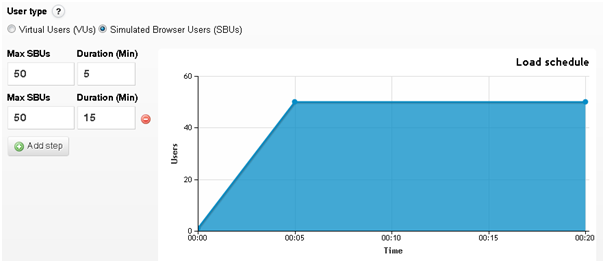
Should I ramp up the load in 1 minute? How about 15? Or maybe 3 hours? How long should I hold the load there for? The answer is – as much as we hate hearing it – it depends. If you’re thinking of doing an instant ramp up or holding the load for a long time, you’re probably looking at doing a Spike Test or Endurance Test. We’ll cover more on that in future posts but for now, we’ll focus on running a regular load test that has a gradual ramp up to simulate slightly more than your usual load (1.5 to 2 times the usual load).

If you have a static amount of resources (i.e. a fixed number of servers allocated to you), these systems usually adapt quite quickly and are able to ramp up quite fast. However, if you are dependent on dynamic resources like cloud servers, your system might need some time to acquire the necessary resource from your cloud service provider. Another thing to note is that if you have a smaller site with limited resources, you should scale up less quickly so you can see where the site starts to fall apart. If you’re in doubt, Load Impact does provide some default recommendations for your ramp up.

These are just suggestions though, but the ground rule is that unless you are looking at simulating a Spike Test (covered later in our stress testing post), we would recommend giving more time for your test to ramp up in order to better simulate actual user behavior.

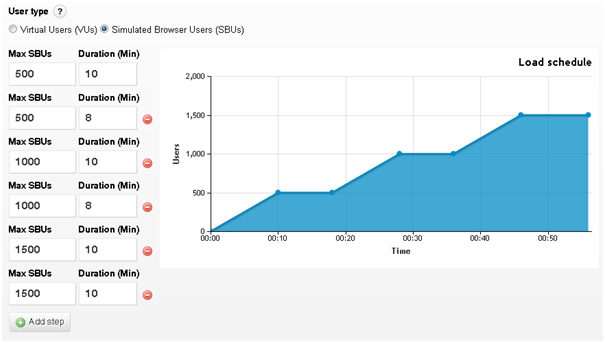
If you are ramping up to a large number of concurrent users, consider a test configuration like below, where the test ramps up in stages in order to ensure that your site is able to handle certain levels of load with ease before moving on to the next load level.

If you are using Load Impact, remember that the test runs through the entire load script, including sleeps (https://loadimpact.com/learning-center/faq/sleep-time), before it is able to report any results. This means that if your load script is several minutes long, it is a good idea to ramp up the test until a certain level and hold it there for a period of time to ensure that the results reported are for that load level.

Different types of website performance testing, Part 1: The basics

There are plenty of types of testing to keep track on out there, and it doesn’t make it easier that many companies are coming out with their own load testing names. In this series of articles, we will talk about several common types of performance tests that you can carry out on your website and how you can configure your test execution plan to carry out these tests. Note that most of these tips are catered for small and medium enterprises, and might not apply for larger companies.

The basics – What is a performance test, and why should I care?
Let’s say you want to throw an open charity party, where anyone and everyone is invited. You want as many people to come, have a great time and hopefully donate some money in the process. You’ve spent weeks decorating the shop, preparing and sending all the invites and nudging people to spread the word. The response is phenomenal – everyone wants to come! But here’s where your problems begin.

Because your gate is too small, your guests are stuck queuing at the front doors. No one was directed to specific parking places, and there just aren’t enough staff to mop up the punch that keeps spilling on the floor. The music is deafening the guests in the concierge and one of the staff who is supposed to collect the donations called in sick and a replacement isn’t available… The list goes on and on.

The party was a success, yes, but also a resounding failure. One third your guests left before they got to even hear about the charity. A second third felt that your services were both slow and unreliable and went home grumbling about it. The rest of the party had a ball, but could’ve had a better experience.

Sounds familiar? The same thing happens when you launch your website as well. Lots of work goes into sprucing up the decorations, creating advertising campaigns and pushing for your website to ‘go viral’. When traffic floods in, however, many websites find that they aren’t built for the load and end up  failing when it is most vital.

What website performance testing does is that it simulates a party at your shop before the day of the party itself. This allows you to see if your gate (bandwidth) is too little, traffic direction (load balancing) issues are smooth, or if your customer service times (load times) are too long. By load testing, you can save yourself a lot of worry on the day of the party and give your customers a much better experience.

If you’ve never explored the possibilities of testing your website’s performance before, the information might be overwhelming. To understand the whole process in detail, you will first need to learn about the different types of testing you can perform.

Some common types of performance tests are:
– Load tests
– Stress tests
– Endurance tests

Some articles might also talk about
– Configuration tests
– Failover tests
– Isolation tests
These terms serve more to be the goals of the test rather than the method of running the performance test itself.

In following weeks we will have a series of blog posts that will cover each type of performance test and lead you through a more thorough explanation of these load testing goals.

About Load Impact

Load Impact is the leading cloud-based load testing software trusted by over 123,000 website, mobile app and API developers worldwide.

Companies like JWT, NASDAQ, The European Space Agency and ServiceNow have used Load Impact to detect, predict, and analyze performance problems.
 
Load Impact requires no download or installation, is completely free to try, and users can start a test with just one click.
 
Test your website, app or API at loadimpact.com

Enter your email address to follow this blog and receive notifications of new posts by email.