On-premise test tools, APMs, CEMs and server/network based monitoring solutions may not be giving you a holistic picture of your system’s performance; cloud-based continuous testing can.
When it comes to application performance a wide array of potential causes of performance issues and end user dissatisfaction exist. It is helpful to view the entire environment, from end user browser or mobile device all the way through to the web and application servers, as the complex system that it is.

Everything between the user’s browser or mobile and your code can affect performance
The state of the art in application performance monitoring has evolved to include on-premise test tools, Application Performance Management (APM) solutions, customer experience monitoring (CEM) solutions, server and network based monitoring. All of these technologies seek to determine root causes of performance problems, real or perceived by end users. Each of these technologies has it’s own merits and costs and seek to tackle the problem from different angles. Often a multifaceted approach is required when high value, mission critical applications are being developed and deployed.
On-premise solutions can blast the environment with 10+Gbit/sec of traffic in order to stress routers, switches and servers. These solutions can be quite complex and costly, and are typically used to validate new technology before it can be deployed in the enterprise.
APM solutions can be very effective in determining if network issues are causing performance problems or if the root cause is elsewhere. They will typically take packet data from a switch SPAN port or TAP (test access point), or possibly a tap-aggregation solution. APM solutions are typically “always-on” and can be an early warning system detecting applications problems before the help desk knows about an issue. These systems can also be very complex and will require training & professional services to get the maximum value.
What all of these solutions lack is a holistic view of the system which has to take into account edge devices (Firewalls, Anti-Malware, IPS, etc), network connectivity and even endpoint challenges such as packet loss and latency of mobile connections. Cloud-based testing platforms such as Load Impact allow both developers and application owners to implement a continuous testing methodology that can shed light on issues that can impact application performance that might be missed by other solutions.
A simply way to accomplish this is to perform a long-term (1 to 24+ hr) application response test to look for anomalies that can crop up at certain times of day. In this example I compressed the timescale and introduced my own anomalies to illustrate the effects of common infrastructure changes.
The test environment is built on an esxi platform and includes a 10gbit virtual network, 1gbit physical LAN, Untangle NG Firewall and a 50/5 mbit/sec internet link. For the purposes of this test the production configuration of the Untangle NG Firewall was left intact – including Firewall rules, IPS protections however QoS was disabled. Turnkey Linux was used for the Ubuntu-based Apache webserver with 8 CPU cores and 2 gigs of ram.
It was surprising to me what did impact response times and what had no effect whatsoever. Here are a few examples:
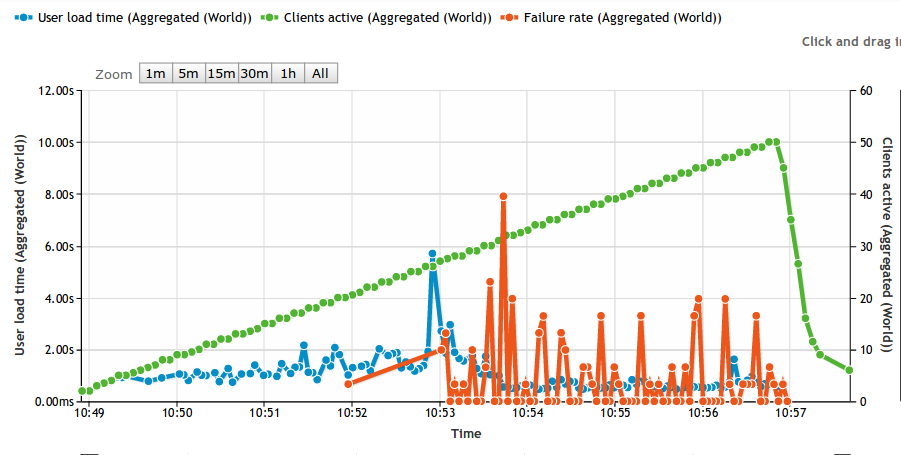
First up is the impact of bandwidth consumption on the link serving the webserver farm. This was accomplished by saturating the download link with traffic, and as expected it had a dramatic impact on application response time:

At approx 14:13 link saturation occurred (50Mbit) and application response times nearly tripled as a result
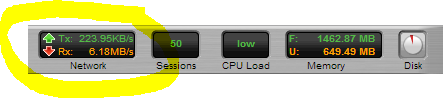
Snapshot of the Untangle Firewall throughput during link saturation testing
Next up is executing a Vmware snapshot of the webserver. I fully expected this to impact response times significantly, but the impact is brief. If this was a larger VM then the impact could have been longer in duration:

This almost 4x spike in response time only lasts a few seconds and is the result of a VM snapshot
Lastly was a test to simulate network congestion on the LAN segment where the webserver is running.
This test was accomplished using Iperf to generate 6+ Gbit/sec of network traffic to the webserver VM. While I fully expected this to impact server response times, the fact that it did not is a testament to how good the 10gig vmxnet3 network driver is:

Using Iperf to generate a link-saturating 15+Gbit/sec of traffic to Apache (Ubuntu on VM)

In this test approx 5.5Gbit/sec was generated to the webserver,no impact whatsoever in response times
Taking a continuous monitoring approach for application performance has benefits to not only application developers and owners, but those responsible for network, security and server infrastructure. The ability to pinpoint the moment when performance degrades and correlate that with server resources (using the Load Impact Server Metrics Agent) and other external events is very powerful.
Often times application owners do not have control or visibility into the entire infrastructure and having concrete “when and where” evidence makes having conversations with other teams in the organization more productive.
———-
 This post was written by Peter Cannell. Peter has been a sales and engineering professional in the IT industry for over 15 years. His experience spans multiple disciplines including Networking, Security, Virtualization and Applications. He enjoys writing about technology and offering a practical perspective to new technologies and how they can be deployed. Follow Peter on his blog or connect with him on Linkedin.




 Load Impact Blog