How does your web application respond to improvements in the underlying hardware? Well, that will depend a lot on your application. Different applications are limited by different factors such as RAM, CPU, bandwidth, disk speed to name a few. In this article, I’ll show you an approach to finding out how to test your way to understanding how your application consumes resources.
At some point in the development cycle, preferably early, it makes good sense to narrow down what factors limit your application the most. It’s also useful to flip that statement around and ask yourself: what hardware improvements will benefit your overall performance the most? If you focus on the latter of the two statements, the solution is probably the most important information you need for good resource planning.
To demonstrate the concept of vertical scalability testing, (or hardware sensitivity testing), I’ve set up a very simple WordPress 3.8.1 installation and will examine how performance varies with changes in hardware. The tests are made using virtual machines where hardware changes are easy to make. I’ve created a simple but somewhat credible user scenario using the Load Impact User Scenario Recorder for Chrome.
The simulated users will:
- Surf to the test site
- Use the search box to search for an article
- Surf to the first hit in the search results
- Go back to the home page
The baseline configuration is very conservative:
- CPU: 1 core
- RAM: 128 Gb
- Standard disks.
The test itself is a basic ramp up test going from 0 to 50 concurrent users. Based on experience from previous tests with WordPress, a low power server like this should not be able to handle 50 concurrent users running stock WordPress. The idea is to run the test until we start seeing failures. The longer it takes before we see failures, the better. In the graph below, the green line is number of simulated users, the blue line is average response time and the red line is the failure rate measured as number of failed requests/s. As you can see, the first failed requests are reported at 20 concurrent users.

A comment on the response times (blue line) going down. At a high enough load, nearly 100% of all responses are error messages. Typically, the error happens early in the request and no real work is carried out on the server. So don’t be fooled by falling response times as we add load, it just means that the server is quick to generate an error.
RAM Memory sensitivity
First, I’m interested to see how performance varies with available RAM. I’ve made the point in previous articles that many PHP based web applications are surprisingly hungry for RAM. So let’s see how our baseline changes with increased RAM:
At 256 Mb RAM (2x baseline):

At 512 Mb RAM (4x baseline)

That’s a quite nice correlation. We see that the number of simulated users that can be handled without a failure is moved higher and higher. At 1024 Mb RAM (8x baseline) we actually don’t get any error at all:

Also note that before the WordPress server spits out errors, there’s a clear indication on the response times. At a light load, any configuration can manage about 1s response time, but as the load increases and we’re nearing the point where we see errors, response times have already gone up.
Sensitivity to CPU cores
Next angle is to look at CPU core sensitivity. With more CPU available, things should move faster, right? RAM memory has been reset to 128 Mb, but now I’m adding CPU cores:
Using 2 CPU cores (2x baseline)
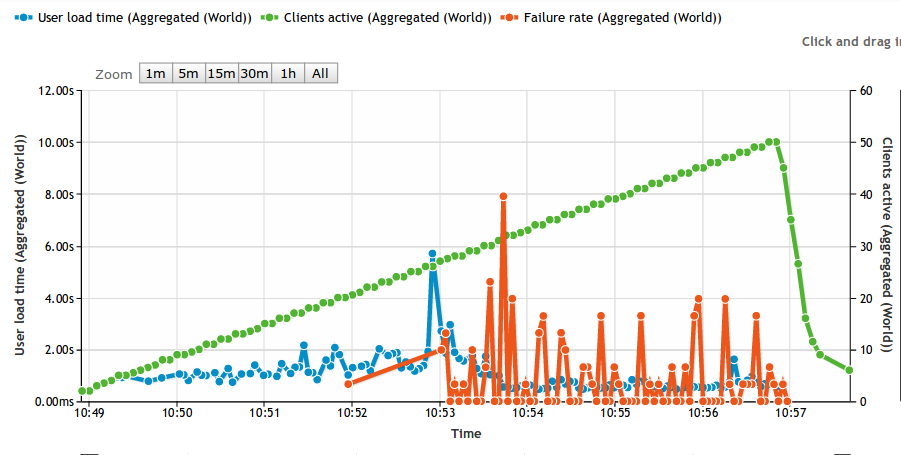
Ops! As you can see, this is fairly close to the baseline. First errors start happening at 20 concurrent users, so more CPU couldn’t do anything to help the situation once we run out of memory. For the sake of completeness, looking at using 4 CPU cores shows a tiny improvement, first errors appear at 23 concurrent users instead of 20.
Using 4 CPU cores (4x baseline)

Adding more CPU cores doesn’t seem to be my highest priority.
Next step, mixing and matching.
You’ve probably already figured out that 128 Mb RAM is too little memory to host a stock WordPress application. We’ve discussed WordPress specifically before and this is not the first time we realize that WordPress is hungry for RAM. But the point of this article wasn’t about that. Rather, I wanted to demonstrate a structured approach to resource planning.
In a more realistic scenario, you’d be looking for a balance between RAM, CPU and other resources. Rather than relying on various ‘rules of thumb’ of varying quality, performing the actual measurements is a practical way forward. Using a modern VPS host that let’s you mix and match resources, it’s quite easy to perform these tests. So the next step is your’s.
My next step will be to throw faster disks (SSD) into the mix. Both Apache/PHP and MySQL benefits greatly from running on SSD disks, so I’m looking forward to seeing those numbers.
Comments, questions or criticism? Let us know by posting a comment below:
——-
 This article was written by Erik Torsner. Erik is based in Stockholm, Sweden, and shares his time between being a technical writer and customer projects manager within system development in his own company. Erik co-founded mobile startup EHAND in the early 2000-nds and later moved on to work as technology advisor and partner at the investment company that seeded Load Impact. Since 2010, Erik manages Torgesta Technology. Read more about Erik on his blog at http://erik.torgesta.com or on Twitter @eriktorsner.


 Load Impact Blog