Is Your Application as Mobile and Global as You Claim it is? – Prove it!

Your application has been localized, your website is responsive, you’ve even built a mobile app – how about your performance?! 

It takes more than a mobile app, responsive design and localization to stay ahead of the game, make sure your performance can also meet the demands of an increasingly mobile and global user-base.

Regardless of whether your applications are in a highly virtual, cloud based environment or a self-hosted single datacenter, realistic performance testing must take into account all the complexities that exist between applications and end users. In today’s highly mobile world, users can literally be anywhere in the world coming across connections that vary widely in quality and speed.

A successful application deployment must take into account factors that influence this Quality of Experience (QX) and integrate continuous testing that best simulates a wide variety of situations.

Not long ago, load testing was a simple and typically one-time test done to size hardware before a roll-out. Testing was nearly always done in-house and did not take into effect what the end user experience was like and how those variables could significantly affect not only user experience but server resources as well.

Gone are the days of users only using your application from a desktop, connected to their DSL at home, and located within the same national borders as your business. Depending on who you ask, by 2020 75% of commercial transactions and 50% of consumer spend will be mobile.

Already today, mobile accounts for 25% of all web usage globally – and 80% for China only. With internet penetration soaring in countries like China, Indonesia and Brazil, its no surprise that nearly all big US-based internet properties are seeing a larger portion of their traffic and users coming from abroad.

The 2014 Mary Meeker Internet Trends report revealed that 6 of the top 10 US-based internet properties that have global operations have more than 86% of their users coming from outside the US.

MaryMeeker copy

This shouldn’t come as a major shock to most applications teams, those who now know they must design either a mobile responsive page or a mobile app in addition to the traditional desktop browser to stay competitive, let alone make sure that a users’ experience is consistent regardless of geographic location.

So if applications teams are so focused on designing around an increasing mobile and global user base, wouldn’t it make sense to performance test in that mode as well – using geographically distributed load, simulating mobile networks, browsers and connections?

Here are a few key considerations and benefits of what a global/mobile approach will bring:

 1.  Browser Simulation

Users interact with applications from a wide variety of desktop and mobile browsers (or apps) today and there are very real differences in how each use case impacts scale.  It’s not good enough to simply assume every browser will follow caching and compression directives the same and that TCP connections issues will be consistent across the whole user base.

Additionally you have to take into account iPhone and Android OS types and multiple browsers on each platform.  Bottom line here is to use multiple user scenarios that include different browsers and platforms mixed in!

A realistic testing platform should simulate both desktop & mobile browsers

A realistic testing platform should simulate both desktop & mobile browsers

2.  Network Connections

One thing that’s for sure these days is an inconsistency when it comes to how users connect to an application.  Some users will have super low latency, google fiber connections (one can dream) that probably eclipse your datacenter circuit performance and others will be on a roaming 3G connection with tons of packet loss.

Even more challenging is what happens when a mobile user hands off from cellular data to WiFi and what that means to server resources (think  lots of FIN & WAIT TCP states) and experience.  A realistic test should include simulations for multiple connection types – DSL, 3G, LTE, unlimited, etc.  Even better would be a system that can introduce jitter and packet loss to mobile connections for the ultimate in realism and impact to server resources.

Being able to simulate different connection types and associated connection quality is also important

Being able to simulate different connection types and associated connection quality is also important

3.  Geo-Distributed Users

Users are going to be geographically distributed for just about any application these days, even intra-net only corporate applications. And they should expect a great user experience regardless of where they are.  At a bare minimum, testing within the continent where 80% of users will be located is recommended – going global is even better.  Being able to test from multiple geographies simultaneously during a single test is very valuable since you can then see exactly the differences in performance and user experience with the only variable being the user location.

If users are primarily US based then test multiple locations within the US - at least

If users are primarily US based then test multiple locations within the US – at least
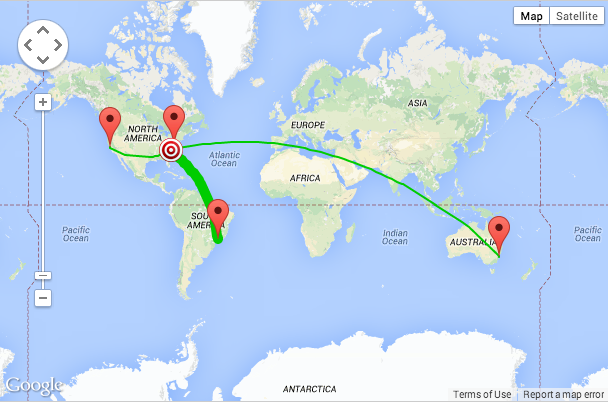
However if users (or company execs) frequently travel abroad then test it!

However if users (or company execs) frequently travel abroad then test it!

A great user experience (sub 1-sec load times for example) is great but if that performance drops off a cliff as you move away from the datacenter then looking into a CDN (or a better CDN) may become a high priority.  If you are using distributed server resources and a complex CDN strategy, this is a great way to validate that all is working properly and you are getting the best value from the provider of choice.

The bane of most Ops teams’ existence is the “the app is slow” ticket, and the last thing a user will want to hear from a support reply is “not from here it’s not!”  A great way to identify early potential performance issues on a geographic basis is to continually test (ok maybe hourly or daily) and automate that process.

If a baseline is created then when performance numbers well outside of that reference range occur you can be proactive and not reactive.  If performance is slow from users in the UK but no where else and you have a quantitative analysis in hand, discussions with hosting and CDN providers takes on a much more productive tone.  Think of all the unnecessarily steps and level-1 troubleshooting that can be eliminated, all potentially before the first support ticket is opened for the UK slowness that you already were working on.

Consistently slower page load times from Australia might mean it's time for a new hosting resources or a CDN upgrade

Consistently slower page load times from Australia might mean it’s time for a new hosting resources or a CDN upgrade

With the tools available today, application teams have the ability to continuously test load and performance with highly realistic and sophisticated test scenarios. Performing this testing using a cloud based test platform removes on-premise test tool cost and deployment hassles and allows teams to test at every phase of a deployment including after the app goes live.

This type of approach can also help evaluate different hosting and CDN offerings well before the application goes live, and determine which providers offer the best value in the regions of the country or world you care most about. Taking a pro-active approach to monitoring the performance of applications, especially mobile applications where you are certain to face TCP connection issues, roaming from 4G to WiFI and a host of other mobile-centric challenges will go a long way to ensuring deployment success in a Dev-Ops fashion.


———–

Peter CannellThis post was written by Peter Cannell. Peter has been a sales and engineering professional in the IT industry for over 15 years. His experience spans multiple disciplines including Networking, Security, Virtualization and Applications. He enjoys writing about technology and offering a practical perspective to new technologies and how they can be deployed. Follow Peter on his blog or connect with him on Linkedin.

Don’t miss Peter’s next post, subscribe to the Load Impact blog by clicking the “follow” button below. 

5 Websites That Crashed This Holiday That Could Have Been Avoided

T’was the season to deliver a seamless online user experience, to bring under two second response times to shoppers looking for the best pre and post Christmas sale. Except that it wasn’t. At least not for the following five companies.

Every Christmas, e-commerce, ticketing, flash-sale and other online businesses prepare themselves to meet the demands of expected visitor traffic. Most fair exceptionally well because they take the necessary precautions and run realistic load and performance tests well in advance.

Yet, as more and more traditionally offline services move online and consumer demand for faster response times increases, the post-mortem on websites that crash during the holiday rush draw ever more media attention.

The increasing media attention is also due in part to the fact that innovation in performance testing has dramatically reduced the cost of doing so and the proliferation of cloud-based tools make testing services accessible to every website owner within just a few minutes. Basically, there is really no excuse for crashing.

Here’s a recap of some of the websites that crashed on our watch this holiday. We definitely didn’t catch all of them, so please do share your stories in the comment section below. Moreover, as we are a Swedish based company, many examples are from Sweden. Feel free to share examples from your countries.

1. December 4th, Wal-Mart.com:

Walmart Site

Wal-Mart went down for a brief period, about an hour, on December 4th. Admittedly, they did claim to have had over 1 billion views between Thanksgiving and Cyber Monday and to have had the best online sales day ever on Cyber Monday.

So, despite the brief downtime, we’ll give it to Wal-Mart. They did have a pretty massive load to bare and if anyone can take it and recover that quickly, it’s probably them.

Read more 

2. December 16th, Myer.com.au:

Myer-620x349

On boxing day, Australia’s largest department store group, Myer, suffered technical difficulties that prevented online purchases during the biggest shopping day of the season.

According to the media, Myer has pumped tens of millions of dollars into improving its website over the years. Despite boosting its technology, this isn’t their first crash during peak shopping periods. They also crashed in June when heavy customer traffic triggered a website failure half an hour after the start of the annual stocktaking sale.

Although Myer is pushing an omni-channel strategy and hoping to boost its online sales in the long-term, the website is only responsible for about 1% of the company’s business today.

Although online sales may not make up a significant part of business today, it would be wise not to deny the impact these constant crashes probably have on the successful implementation of an omni-channel strategy. Yet this is how Myer CEO, Mr. Brookes,  seems to be behaving when he made this odd statement about the recent boxing day crash.

“There will be no impact at all on our profitability or our overall sales”

Sure Mr. Brookes, if you say so.

Read more

3. December 25th, Siba.se:

Siba ImageThe day after Christmas, Siba – one of Sweden’s largest electronic’s dealers –  crashed due to overwhelming visitor traffic. This in turn led to a social media storm of customers complaining that the site was down.

As a curtesy to those who were not able to access the site,  Siba directed visitors to its sales catalogue saying: “Oops, at the moment there is a lot of traffic on the site, but you can still read our latest catalogue and stay up to date through our Facebook page”.

Thanks Siba, reading about the sales I’m missing out on is totally the same as taking advantage of them.

4. December 29th, SF.se 

In the period between Christmas and New Year’s,  SF  – Sweden’s largest movie theatre chain – suffered continuous day long crashes and delays. This left many people unable to fill those long cold days, when not much else is going on, with a cozy few hours at the cinema. In fact, these “mellandagarna” (days between Christmas and New Year’s) are the busiest movie going days of the entire year.

Needless to say, people were very frustrated. Particularly because SF has a monopoly and if they go down there is pretty much no where else to turn to get your cinema fix.

Read more

5. January 1st, Onlinepizza.se:

For the third new year’s day in a row, Onlinepizza.se crashed due to heavy user load. This may seem trivial to some, but to Swedes it’s devastating. That’s because on new year’s day, Swedes eat pizza. It’s just what they do.

So, despite the nearly  30,000 or so pizzas sold that day through Onlinepizza.se, many hungry swedes were forced to brave the cold and wind and buy their pizza the old fashion way – in a pizzeria.

Read more

Some of the holiday website crashes described above are bearable; most of us can go without buying another electronic device or pair shoes for at least a few days. But not being able to cozy up in a warm cinema on days when it’s to cold to go outside and nothing else in the city is open is just disappointing. As is not getting a home delivered pizza when you just simply can’t stuff another left-over Swedish meatball down your throat.

HealthCare.gov tech taskforce is invited to use our load testing services free of charge

We’re offering to provide the technology taskforce responsible for fixing the troubled HealthCare.gov website free use of our performance testing services until the Obamacare website is functioning at full capacity.

Healthcare .gov

In testimony before the House Energy and Commerce Committee on Thursday, officials of companies hired to create the HealthCare.gov website cited a lack of testing on the full system and last-minute changes by the federal agency overseeing the online enrollment system as the primary cause of problems plaguing the government exchange for President Barack Obama’s signature health care reforms.

Moreover, according to a confidential report obtained by CNN, the testing timeframes for the site were “not adequate to complete full functional, system, and integration testing activities” and described the impact of the problems as “significant.” The report stated there was “not enough time in schedule to conduct adequate performance testing” and was given the highest priority.

We know that there’s really nothing new in the failure of the Obamacare site. Websites have been developed that way for years – often with the same results. But there are now new methodologies and tools changing all that. That’s why  we’ve reached out to our California representatives and all of the companies involved to let them know we’re ready to provide our stress testing services to them free of charge.

It isn’t like it used to be – this shouldn’t be hard, time consuming or expensive. You just need to recognize that load testing is something that needs to be done early and continuously throughout  the development process. It’s not optional anymore. Unfortunately, it seems they found that out the hard way. But we sincerely want to help make it work.

HealthCare.gov represents hope for many Americans, and the elimination of their worst fears in medical care. Instead of whining about how incompetently HealthCare.gov has been built, we want to be part of making it work as it should and can.

Detect server side problems using Nagios plugins and the Load Impact Server Metrics Agent

Just recently we launched our cloud-based Server Metrics Agent – a function that allows you to collect information about what’s happening internally on your servers while your website or -application is being load tested. Installing the Server Metrics agent on one of your machines will immediately let you see how much CPU, memory and network bandwidth the server is using throughout the load test.

SMA

This can, of course, be very useful when looking for bottlenecks, but sometimes you want to know more. For example, you might be using a database software such as PostgreSQL and suspect that it is running out of some PostgreSQL– internal resource, such as client connections, causing a bottleneck for your web server in handling client requests. In this case, you will not notice any problems just by looking at, for example, the CPU or memory usage on the physical server where PostgreSQL is running. Instead, you must communicate directly with PostgreSQL and ask it how it’s doing. You want it to tell you how many connections its database clients are using and what the maximum limit is.

When we created our Server Metrics agent, we realized people would want to collect more specialized metrics like this. Not just the standard physical server metrics (e.g. CPU usage, memory usage, disk usage, etc) but we were confronted with a big problem; there are thousands of different systems, platforms, applications from which you might want to collect performance metrics in order to detect bottlenecks, and each of them communicates in different ways. We couldn’t possibly write monitoring code to support every one of them.

Luckily, we have a bit of experience with uptime monitoring, and we knew that the very popular open-source monitoring solution Nagios has a simple and flexible plugin system that is easy to interface with. We came up with the idea of designing our Server Metrics agent so that it was compatible with the Nagios plugin system, allowing users to use any Nagios plugins to collect performance data during their load tests.

As a result, Server Metrics allows you to collect performance metrics from almost anything! Measurements from the Server Metrics Agent can be correlated with other measurements collected during load tests, and results are made available as a time series that can also be viewed in graph format on the test results page, or exported to CSV (comma-separated values) format for use in a spreadsheet.

The Nagios community has created over 3,000 different plugins that measure the health of all kinds of software applications, hardware products, networks and services. And the plugins are available for all kinds of platforms (e.g. Linux, Windows, etc).

  1. Follow the instructions at https://loadimpact.com/server-metrics-agent-download to download, install and enable your server metrics agent

  1. Go to http://exchange.nagios.org/directory/Plugins and find the plugin(s) you want to use. In our case we wanted to monitor PostgreSQL so we go to http://exchange.nagios.org/directory/Plugins/Databases/PostgresQL which lists 18 (!) different plugins that can extract information about the health of a PostgreSQL server. We chose the “check_postgres” plugin – http://exchange.nagios.org/directory/Plugins/Databases/PostgresQL/check_postgres/details

  1. Download and install the check_postgres plugin (in our case we did it locally on our PostgreSQL server)

  1. Edit the configuration file for the server metrics agent – it is called “li_metrics_agent.conf” and look at the section in it that says “# An external script” for information about how to make the Server Metrics agent start using your new Nagios PostgreSQL plugin. In our case we added two lines that looked like this:

[db_connections]

command = /usr/bin/perl /path/to/check_postgres-2.11.1/check_postgres.pl –host=localhost –port=5432 –dbname=loadimpact –dbuser=postgres –dbpass=verysecret –action backends -w 5 -c 10

Tip: if you have installed a Nagios plugin but don’t know what parameters it needs, try executing it with the –help parameter

  1. Restart your Server Metrics agent

  1. As usual, you then enable Server Metrics data collection from this particular agent when you configure a load test

Tip: the agent name should be shown as a selectable Server Metrics agent in the test configuration interface. If it you do not see it listed, this means your agent hasn’t started or that it can’t reach loadimpact.com. The latter is often a firewall issue.
When the test starts, you will see the Server Metrics agent coming online in the console:

Then when the load test is running you will be able to plot the usual CPU, memory, disk, etc. statistics that the Server Metrics agent collects by default, but you will also have a new metric called whichever name the active database has that you are measuring client connections for (in this case, the database is called “loadimpact”):

So in this example, we choose to plot this metric, which will show us the current number of clients connected to the database “loadimpact” on the PostgreSQL database on the physical server “dbserver1”. The chart then looks like this:

The orange line shows the current number of connections to the database “loadimpact”, which in this example is around 80 and fairly stable.

This is, of course, just a simple example. The check_postgres plugin can measure a vast number of things related to your PostgreSQL database server. And anything it can measure you can have the Load Impact Server Metrics agent collect and relay to loadimpact.com to be stored as test result data associated with your load test. Many of the 3,000+ Nagios plugins are very powerful data collection programs, and by utilizing the Nagios plugin compatibility of Load Impact’s Server Metrics agent you suddenly have access to an incredibly wide range of measurement and monitoring options for load testing.

Load testing tools vs page speed tools

In a recent post, we talked about the difference between load testing tools and site monitoring tools. Another quite common question is what the difference is between Load testing tools and page speed tools. They both measure response time and they both are important when it comes to assess the performance of your web site. So what it the difference and which one do I need?

For most webmasters, the answer is probably that you need both. But before we talk about why, let’s try a car analogy.

Your own limousine business

Let’s say that you are the CEO of a limousine business. Every single day, you get a call from a client that wants to be picked up at the airport and taken to the city hotel. You send out one of your cars to pick the client up at the airport. The car navigates through traffic and safely leaves the client at the hotel he wanted to go to. Pretty easy.

Now, every now and then, your drivers report that the client wants to get to the hotel quicker and if your business can’t handle that, the client will switch to another limousine business. Since you don’t want to lose your customer, you take the feedback very seriously and start looking into what you can do about it. If you have any intention to do your work seriously, you’re probably going to start with measuring how long it actually takes to get the client from the airport to the hotel. A sensible thing to measure would be to look at the time elapsed from the client’s phone call until he is left of at his hotel. You also look into how long time it takes after the call until the  car is heading to the airport, how long time it takes to locate the client at the airport and how long time it takes to drive from the airport to the hotel.

After some careful analysis, you end up with a very good understanding of what takes time and you probably have a good idea about some of the things you can do to speed it up. Perhaps you decide to always have a car ready at the airport. You might want to change your stretch limousine car to a Ferrari or even to a motorcycle (an existing service in Paris among other cities) to make the actual trip a bit faster.  There’s a lot of different things you can do to make your service quicker. At some point, you are happy with the performance improvements and when you are, you have optimized your ability to take one client from one destination to another as fast as possible.

What does a limousine have to do with web pages?

Back to the subject of this article. A lot of web masters have received the same type of feedback as you did as CEO of the limousine service. But instead of complaining about how quick the clients gets to the hotel, they complain that your web page feels slow. And in reality, most of your clients won’t even complain, they’ll simply direct their browser to a different web site and never look back.

So, as a web master, you want to do the equivalent of measuring how fast your service is.  To do this, you want to get hold of a page speed measurement tool, and there are plenty to select from. The two most well known tools are Google PageSpeed Tools and Yahoo! YSlow, they don’t stop at measuring the actual page load times, they also give you a lot of insight into what is considered good enough and what you can do to improve the page load speed.

As you begin to implement various fixes to improve your page load time, you most likely go back to your tool of choice and redo your measurements in an iterative process. At some point, you are happy with the performance improvements and when you are, you have optimized your ability to serve one page to one client as fast as possible.

A more complicated limousine service

In reality, the limousine service has a lot of different clients. Not all of them is a single person that want to go from the airport to the hotel.  Some clients is a single person that want to go from the train station to the hotel and another type of client is a party of 10 people that want to go from the hotel to the airport. And sometimes things gets really complicated, you get 100 clients calling pretty much at the same time wanting to go in all kinds of directions. For most business owners, having a lot of clients calling would be a nice problem, but it’s even more important to be able to keep the service level high, otherwise you just get a lot of disappointed clients, fast.

So, some of the optimizations you made to serve one client really quick will still be valid. Having cars waiting at the airport probably still makes sense, but should you really have a Ferrari or a motorcycle waiting there? Perhaps the stretch limousine that takes 10 passengers was a pretty good thing after all, or a mix? Clearly, this is a much more complicated thing to measure and optimize and to be honest, if I was the CEO of the limousine service, I would have to think hard to even know where to begin.

Load testing tools

The purpose of load testing tools is to help you simulate how your web site performs when you have a lot of clients at the same time. You will find out that some of the optimizations you made to make a single page load really quick makes perfect sense also when you have a lot of concurrent clients. But other optimizations actually makes things worse. An example would be database optimizations,  the very indexes that makes the web page super fast as long as the page only require good read performance may hurt you a lot when some client requests are writing to the same tables at the same time. Another example may be memory consumption. When one single web page is being requested, a script that uses a lot of memory can go unnoticed or even speed things up, but in a high load scenario, high memory consumption would almost certainly hurt performance when the web server starts to run out of memory.

So if I was a web master, I do have a pretty good idea where to begin when optimizing a web site for many concurrent users. I would start with a load testing tool.

Load testing tools vs page speed tools

Back to the original question. What is the difference between load testing tools and page speed tools and which one should I use? Again, the answer is that you probably should use both.

Fast loading web pages is crucial so you should absolutely use one of the page speed tools available. Web users turn their back to slow pages faster than you can type Google PageSpeed Tools in your search bar.  And the bonus is that a lot of the things you do to optimize single page load times are going to help performance also in high load scenarios.

Fast loading web pages that keep working when you have a lot of visitors is perhaps even more crucial. At least if your web business relies on being able to serve users. If you want to know how your web page performs when you have 10, 100 or even 10000 users at the same time, you need to test this with a load testing tool such as loadimpact.com/

Opinions? Questions? Tell us what you want think in the comments below.

Load testing tools vs monitoring tools

So, what’s the difference between a load testing tool (such as http://loadimpact.com/) and a site monitoring tool such as Pingdom (https://www.pingdom.com/). The answer might seem obvious to all you industry experts out there, but nevertheless it’s a question we sometimes get. They are different tools used for different things, so an explanation is called for.

Load testing tools

With a load testing tool, you create a large amount of traffic to your website and measure what happens to it. The most obvious measurement is to see how the response time differs when the web site is under the load created by the traffic. Generally, you want to find out either how many concurrent users your website can handle or you want to look at the response times for a given amount of concurrent users. Think of it as success simulation: What happens if I have thousands of customers in my web shop at the same time. Will it break for everyone or will I actually sell more? Knowing a bit about how your website reacts under load, you may want to dig deeper and examine why it reacts the way it does. When doing this, you want to keep track of various indicators on the web site itself while it receives a lot of traffic. How much memory is consumed? How much time spent waiting for disk reads and write? What’s the database response time? etc. Load Impact offers server metrics as a way to help you do this. By watching how your webserver (or servers) consume resources, you gradually build better and better understanding about how your web application can be improved to handle more load or just to improve response times under load. Next up, you may want to start using the load testing tool as a development tool. You make changes that you believe will change the characteristics of your web application and then you make another measurement. As you understand more and more about the potential performance problems in your specific web application, you iterate towards more performance.

Monitoring tools

A site monitoring tool, such as Pingdom (https://www.pingdom.com/), might be related, but is a rather different creature. A site monitoring tool will send requests to your web site on a regular interval. If your web site doesn’t respond at all or, slightly more advanced, answers with some type of error message, you will be notified. An advanced site monitoring tool can check your web site very often, once every minute for instance. It will also test from various locations around the world to be able to catch network problems between you and your customers. A site monitoring tool should be able to notify you by email and SMS as soon as something happens to your site. You are typically able to set rules for when your are notified and for what events, such as ‘completely down’, ‘slow response time’ or ‘error message on your front page’ In recent years, functionality have gotten more advanced and beside just checking if your web site is up, you can test entire work flows are working, for instance if your customers can place an item in the shopping card and check out. Most site monitoring tools also include reporting so that you can find out what your service level have been like historically. It’s not unusual to find out that the web site you thought had 100% uptime actually has a couple of minutes of down time every month. By proper reporting, you should be able to follow if downtime per month is trending. Sounds like a good tool right? We think it deserves to be mentioned that whenever you detect downtime or slow response time with a site monitoring tool, you typically don’t know why it’s down or slow. But you know you have problems and that’s a very good start.

One or the other?

Having a bit more knowledge about the difference between these types of tools, we also want to shed some light on how these can be used together. First of all, you don’t choose one or the other type of tool, they are simply used for different things. Like measuring tape and a saw, when your building a house you want both. We absolutely recommend that if you depend on your web site being accessible, you should use a site monitoring tool. When fine tuning your web site monitoring tool, you probably want to set a threshold for how long time you allow for a web page to load. If you have conducted a proper load test, you probably know what kind of response times that are acceptable and when the page load times actually indicates that the web server has too much load. Then, when your site monitoring tool suddenly begins to alert you about problems you want to dig down and understand why, that’s when the load testing tool becomes really useful. As long as the reason for your down time can be traced back to a performance problem with the actual web server, a load testing tool can help you a long way. Recently, I had a client that started getting customer service complaints about the web site not working. First step was to set up a web site monitoring tool to get more data in place. Almost directly, the web site monitoring tool in use was giving alerts, the site wasnt always down, but quite often rather slow. The web shop was hosted using standard web hosting package at one of the local companies. I quickly found out that the problem was that the web shop software was just using a lot of server resources and this was very easy to confirm using a load testing tool. Now the client is in the process of moving the site to a Virtual Private Server where resources can be added as we go along. Both types of tools played an important role in solving this problem quickly. Questions? Tell us what you want to know more about in the comments below.

WordPress load testing part 3 – Multi language woes

Understanding the effects of memory starvation.

This is the third part in a series of posts about WordPress and performance. In part 1,
we took a look at WordPress in general. In part 2 and part 2.5 we reviewed a couple of popular caching plugins that can boost performance. In this part, we’ll start looking at how various plugins can have a negative effect on performance and if anything can be done about it.

In the comments for one of the previous posts in this series, Yaakov Albietz asked us if we used our own service www.loadimpact.com for the tests. I realize that I haven’t been that obvious about that, but yes, absolutely, we’re exlusively using our own service. The cool thing is that so can you! If you’re curious about how your own web site handles load, take it for a spin using our service. It’s free.

We started out by looking for plugins that could have a negative effect on WordPress performance, thinking, what are the typical properties of a bad performer plugin? Not so obvious as one could think. We installed, tested and tinkered with plenty of suspects without finding anything really interesting to report on. But as it happens, a friend of a friend had just installed the WordPress Multi Language plugin and noted some performance issues. Worth taking a look at.

The plugin in question is WordPress Multi Language (WPML). It’s got a high rating among the WordPress community wich makes it even more interesting to have look at. Said and done, we installed WPML and had it for a spin.

The installation is really straight forward. As long as your file permissions are set up correctly and the WordPress database user have permissions to create tables, it’s a 5-6 click process. Install, activate, select default language and at least one additional language and your done. We’re eager to test, so as soon as we had the software in place, we did our first test run on our 10 post WordPress test blog. Here’s the graph:

Average load times 10 to 50 users

Ops! The baseline tests we did for this WordPress installation gave a 1220 ms response time when using 50 concurrent users. We’re looking at something completely different here. At 40 concurrent users we’re getting 2120 ms and at 50 users we’re all the way up to 5.6 seconds or 5600 ms. That needs to be examined a bit more.

Our first suspicion was that WPML would put additional load on the MySQL server. Our analysis was actually quite simple. For each page that needs to be rendered, WordPress now have to check if any of the posts or pages that appears on that page have a translated version for the selected language. WPML handles that magic by hooking into the main WordPress loop. The hook rewrites the MySQL query about to be sent to the database so that instead of a simple “select foo from bar” statement (over simplified), it’s a more complex JOIN that would typically require more work from the database engine. A prime performance degradation suspect unless it’s carefully written and matched with sensible indexes.

So we reran the test. While that test was running we sat down and had a look at the server to see if we could easily spot the problem. In this case, looking at the server means log in via ssh and run the top command (if it had been a Microsoft Windows box, we’d probably have used the Sysinternals Process Exporer utility) to see what’s there. Typically, we’d want to know if the server is out of CPU power, RAM memory or some combination. We were expecting to see the mysqld process consume lots of CPU and verify our thesis above. By just keeping an unscientific eye on top and writing down the rough numbers while the test was running, we saw a very clear trend but it was not related to heavy mysqld CPU usage:

20 users: 65-75% idle CPU 640 MB free RAM
30 users: 50-55% idle CPU 430 MB free RAM
40 users: 45-50% idle CPU 210 MB free RAM
50 users: 0%   idle CPU  32 MB free RAM

As more and more users was added we saw CPU resource usage go up and free memory availability go down, as one would expect. The interesting things is that at 50 users we noted that memory was extremely scarce and that the CPU had no idle time at all. Memory consumption increases in a linear fashion, but CPU usage suddenly peaks. That sudden peak in CPU usage was due to swapping. When the server comes to the point where RAM is running low, it’s going to do a lot more swapping to disk and that takes time and eats CPU. With this background information in place, we just had to see what happended when going beyond 50 users:

That’s very consistent with what we could have expected. Around 50 concurrent users, the server is out of memory and there’s a lot of swapping going on. Increasing the load above 50 users will make the situation even worse. Looking at top during the later stages of this test confirms the picture. The kswapd process is using 66% percent of the server CPU resources and there’s a steady queue of apache2 processes waiting to get their share. And let’s also notice that mysqld is nowhere to be seen (yes, this image is only showing the first 8 processes, you just have to take my word for it).


The results from this series of tests are not WPML specific but universal. As we put more and more stress on the web server, both memory and CPU consumption will rise. At some point we will reach the limit of what the server can handle and something got to give. When it does, any linear behavior we may have observed will most likely change into something completely different.

There isn’t anything wrong with WPML, quite the opposite. It’s a great tool for anyone that want a multi language website managed by one of the easiest content management systems out there. But it adds functionality to WordPress and in order to do so, it uses more server resources. It seems WPML is heavier on memory than on CPU, so we ran out of memory first. It’s also interesting to see that WPML is actually quite friendly to the database, at no point during our tests did we see MySQL consume noticeable amounts of CPU.


Conclusion 1: If you’re interested in using WPML on your site. Make sure you have enough server RAM. Experience of memory requirements from “plain” WordPress will not apply. From the top screen shot above, we conclude that one apache2 instance running WordPress + WPML will consume roughly 17 Mb RAM, we havent examined how that differs with number of posts, number of comments etc, so lets use 20Mb as an estimate. If your server is set up to handle 50 such processes at the same time, you’re looking at 1000 Mb just for Apache. So bring out your calculators and calculate how much memory your will need for your server by multiplying the peak number of users you expect with 20.

Conclusion 2: This blog post turned out a little different that we first expected and instead of blaming on poor database design we ended up realizing that we were watching a classic case of memory starvation. As it turned out, we also showed how we could use our load testing service to provide a reliable source of traffic volume to create an environment where we could watch the problem as it happens. Good stuff, something that we will appear as a separate blog post shortly.


Feedback

We want to know what you think. Are there any other specific plugins that you want to see tested? Should we focus on tests with more users, more posts in the blog, more comments? Please comment on this post and tell us what you think.


WordPress load test part 2 – amendment

This is the second and a half part in a series of posts about WordPress and performance. In part 1, we took a look at WordPress in general. In part 2 we reviewed a couple of popular caching plugins that can boost performance. In this follow up post, we’ll tell you a bit about what we learned after part 2 was published.


Revisiting W3 Total Cache

After publishing our results in part 2, we received a concerned Twitter message from Frederick Townes, the W3 Total Cache (W3TC) author. He thought we had done something wrong since the Disk enhanced cache mechanism used in W3TC should be at least as effective as the WordPress Super Cache plugin (WPSC). After a brief Twitter discussion, we understood that he was absolutely right. The mod_rewrite magic that WPSC uses to achieve the amazing results was indeed present in W3TC as well (and I might as well add that the mod_rewrite rules added by Freredick’s plugin is neater than the ones added by the test winner).

The mistake we made in our first test is that we didn’t realize the significant difference between the two different disk based page caching methods available. There’s “Basic” caching which is the one we tested, and there’s “Enhanced mode”. In Basic mode, W3TC will work pretty much the same way as the standard wp-cache plugin which involves invoking a PHP script. In our server benchmark, we’ve already seen that our server will consume in the region of 80ms for doing that so we’re glad if we could avoid it in the elegant manner that WordPress Super Cache does.

In Enhanced mode, surprise surprise, avoiding invoking PHP is exactly what W3 Total Cache will do. The basic concept is the same in W3TC and WPSC, both plugins will add a bunch of lines to the .htaccess file that tells Apache2 to go look for a static copy of (a.k.a cached) version of the requested file/resource. And as noted above, W3TC does this with a slightly more elegant addition to .htaccess. In our defense, even though the documentation provided with W3TC is good, we didn’t find anything in particular that explained this significant difference between Basic and Enhanced.

How Load Impact can affect the results

Naturally, we took W3TC back to the lab to see how fast it is in enhanced mode. But before telling you about the results, we want to explain a few details about how Load Impact works. When we ask Load Impact to simulate the load of 50 concurrent web users, that is exactly what Load Impact will do. The second the test starts, exactly 50 virtual users will load the page at the same time and Load Impact will note how long time it takes before the web server responds and the content is completely transferred. Then, each virtual user will make a random pause and try again. Depending on the accuracy settings for the test, this will be repeated over and over again. In a “Fast” test, there will be very few repetitions and in a “Accurate” test, there will be lots and lots of repetitions. The more repetitions, the more data points to use when calculating the average load time. This configuration setting allows users to prioritize test completion time over accuracy if they want to. This behavior actually have some impact when testing cache plugins. When we test, the first time when 50 virtual users comes storming to the test web server at once Apache will fire up as many child processes as it’s configured for, 30 in our case. All of these processes will go look in the cache and quite likely discover that there is no cached version of the requested file. So PHP is invoked, WordPress will generate the page and the cache plugin kicks in and stores the rendered version of the page in the cache. Not only does creating the cached version take more time than a normal page request does, in our scenario, there’s a risk that this is done up to 30 times. And to make things even worse, 30 child processes writing to a file based cache exactly the same time will cause a lot of file locking problems that will end up taking even more time.

The conclusion is that depending on the state of the cache when the test begins, the response time of the first 30 data points may vary. And this is exactly what we saw when we took W3 Total Cache back to the lab.

Testing W3 Total Cache again

We retested W3TC again and arrived at these numbers:

WordPress baseline: 1220 ms

W3 Total Cache (basic disk): 256 ms (-79.0%)

W3 Total Cache (enhanced disk): 188 ms (-84.6%)

That’s a solid improvement so we contacted Frederick again with the good news only to be turned down again, “something is still wrong” he told us. Then we redid the test for Enhanced mode  and over again with minor tweaks to the W3TC settings. After every tweak, we cleared the cache so that any cached pages specifics wouldn’t interfere with the current settings. We saw slightly higher average load times as well as slightly lower, but we were never close to the 112 ms record set when using the WordPress Super Cahce plugin. Until the “warm vs cold” cache issue hit us and we did a test with a warm cache. And boom! The average load time decreased all the way down to 109 ms, better than what WPSC would acheive. So let’s add how W3TC performs using enhanced disk caching:

Using Enhanced disk cache:

Average load time 50 users: 109 ms

Baseline difference: -1111 ms

Baseline difference %: -91.1%


Summary

Results

Before updating the results table,  we retested the other results as well, but the number we ended up with in the retests was all within a 5ms difference from the original test result, so we’re sticking with the results from our first round of tests. But we’re reducing to using just 2 significant figures:

Plugin Avg. load time Difference Difference %
Standard WordPress 1220 0 0 %
wp-cache 210 -1010 -83 %
batcache 537 -683 -56 %
WP Super Cache 112 -1108 -91 %
W3 Total Cache (disk basic) 256 -964 -79 %
W3 Total Cache (disk enhanced) 109 -1111 -91 %
W3 Total Cache (memcache) 367 -853 -70 %

 
That’s it.

WordPress load test part 2

NOTE: This post was updated after it was first published. Please click here for explanation.

This is the second part in a series of posts about WordPress and performance. In part 1, we took a look at WordPress in general. In this part, we’ll continue the investigation and look at a few specific plugins that can help improve performance.

First things first, in part 1, we used a 8Gb Quad core server for the tests. From now on, we’ve moved to a KVM virtual server. The main purpose of that is that we change the machine configuration when something interesting is discovered. For instance, if we discover a performance problem and suspect RAM memory to be the bottleneck, we can add memory to the machine and rerun the test. The obvious downside is that the baseline established in part 1 isn’t valid anymore. So the first task is to examine how this virtual machine handles load as described in part 1.

The base configuration for the virtual server is 2 CPU cores running at 2.1 GHz with 1024 MB RAM memory. The OS Ubuntu JEOS upgraded to 9.04. Apache2 is at version ___, PHP5 is up to version  . The MySQL server is located on the same machine and is running 5.xxx. WordPress is upgraded to version 2.9.1.

The baselines. A simple PHP script that sends 10 bytes of data back to the user has an average load time of 85 ms when running 80 concurrent users. That’s actually pretty much the same number as we saw on the 8Gb Quad core machine, we had 80.9 ms on that machine.

Next thing we looked at in the first part was the average load time for a basic empty WordPress install. On the Quad core box, we saw an average load time of 357 ms for 80 users. On the virtual machine, not so good. A ramp up test going from 50 to 80 concurrent users shows load times at 691 ms for 50 users and more or less infinite at 60 users. At that load level, the kswapd process was eating away a good 66% of all available CPU, meaning that the server spent most of it’s time swapping pages back and forth between RAM and disk. Even if nothing actually crashed, we aborted the test and concluded that the current config can’t handle more than 50 concurrent users.

For the final baseline test we added 10 posts into the WordPress install and made a new measurement. On our virtual machine, 50 users gave us a load time of 1220 ms, the same load on the Quad core machine gave us 470 ms response times. Clearly, taking away 2 processor cores and slashing the RAM memory to 1/8th affects average load times badly which is not surprising at all. Anyway, we now know that our current test environment is unlikely to handle more than 50 concurrent users and we also know what happens if we add RAM and/or CPU cores.


Tweaking WordPress performance

There are numerous of ways to increase wordpress performance and we’ll have a look at how the numbers gets affected in this particular installation. Now, WordPress wouldn’t be WordPress if the most interesting performance tweaks was already packaged as easy to use plugins, so instead of digging deep into the WordPress core, we ended up evaulating a set of interesting plugins, here they are:

wp-cache plugin

The wp-cache plugin have become very popular way to add a chache to WordPress. WordPress used to have a built in object cache, but that got cancelled in WordPress 2.5. So today, the wp-cache plugin is one of the most obvious plugins that come to mind when wanting to tweak WordPress performance (and yes, we’ll look at wp-super-cache as well). The test result with wp-cache is very good. As we’ve seen above, this server will need 85 ms to server the simplest possible PHP script and the wp-cache plugin gets us fairly close to that ideal number.

Average load time 50 users: 210 ms

Baseline difference: -1010 ms

Baseline difference %: -82.9%


batcache plugin

Batcache was written to help WordPress.com cope with the massive and prolonged traffic spike on Gizmodo’s live blog during Apple events. Live blogs were famous for failing under the load of traffic. Gizmodo’s live blog stays up because of Batcache. The developers of Batcache actually refer to WP Super Cache themselves as a better alternative, but in some cases with multiple servers and where memcached is available, Batcache may be a better solution. The performance gains with Batcache is actually not up to par with what wp-cache or WP Super Cache delivers, but it’s still a lot better than a standard WordPress install.

Average load time 50 users: 537 ms

Baseline difference: -683 ms

Baseline difference %: -56.0%


WP Super Cache plugin

The WP Super cache plugin takes things a few step further compared to the standard wp-cache. Most notably, by using a set of Apache2 mod_rewrite rules, WP Super cache is able to serve most of your WordPress content without ever invoking the PHP engine, instead the content is served at the same speed as it would serve static content such as graphics or javacsript files. Installing this plugin is a little bit more complicated and it requires both mod_headers and mod_expires Apache2 modules to be enabled. But once installed, it really works, just look at the numbers! If using the WP Super Cache plugin works on your server, it’s probably the easiest and most powerful way to boost your WordPress performance numbers. And if it doesn’t work as intended on your server, the good thing is that it reverts back to the functionality provided by the standard wp-cache plugin.

Average load time 50 users: 112 ms

Baseline difference: -1108 ms

Baseline difference %: -90.8%


W3 Total Cache plugin

The W3 Total Cache plugin is a powerful plugin that takes the best from wp-cache and batcache and adds a few additional features to improve performance. W3 Total cache allows the user to choose between disk and memory based caching (using memcached). It also supports minifying HTML, JS and CSS files as well as the various types of http compression (deflate, gzip etc.). Finally, W3 Total cache supports placing content on a content delivery network (CDN) that can speed up loading of static content even further. W3 Total Cache have a lot of configuration options and we did not take the time to fully investigate them all. We did test the performance difference when using disk based caching and memory based caching and the difference is actually notable. We enabled minifying and compression but we’ve pretty much used everything else ‘out of the box’.

Using disk cache:

Average load time 50 users: 256 ms

Baseline difference: -964 ms

Baseline difference %: -79.0%


Using memory cache:

Average load time 50 users: 367 ms

Baseline difference: -853 ms

Baseline difference %: -70.0%

Summary

Results

NOTE: This table was updated after it was first published. Please click here for explanation.

Plugin Avg. load time Difference Difference %
Standard WordPress 1220 0 0 %
wp-cache 210 -1010 -83 %
batcache 537 -683 -56 %
WP Super Cache 112 -1108 -91 %
W3 Total Cache (disk basic) 256 -964 -79 %
W3 Total Cache (disk enhanced) 109 -1111 -91 %
W3 Total Cache (memcache) 367 -853 -70 %


Conclusions

The various performance related plugins for WordPress all revolves around caching. The most impressive results was acheived using WP Super Cache and W3 Total Cache. Among the other plugins, the choice is between disk based caching and memcached based caching. Our tests actually show that disk is faster, but that’s something that needs to be explored further. The tests have been done on a blog with very little data in it and Linux uses a fair amount of disk caching that is probably more effective with these particular amounts of data. Whenever WP Super Cache is not possible to use (or simply feels too exotic for you), we suspect that a perfectly tuned W3 Total Cache is the best choice. W3 Total Cache shows the most potential for tuning and we like the overall ‘look-and-feel’ of it. UPDATE: Actually, after retesting W3 Total Cache, we think it may an even better alternative than WP Super cache. The one negative thing we’ve picked up so far is a potential compatibility issue with WordPress Multi User (WPMU), but we have not been able to confirm that.


Feedback

We want to know what you think. Are there any other specific plugins that you want to see tested? Should we focus on tests with more users, more posts in the blog, more comments? Please comment on this post and tell us what you think.


Load testing WordPress

This is the first part in a series of posts about WordPress and performance. In part 1, we’ll look at WordPress in general, in later instalments, we’ll look at how performance is affected by popular plugins and tweaks. (click here for part 2)

WordPress is probably the most popular blogging platform out there today powering a countless number of blogs and other web sites. WordPress was first released back in 200x and quickly became a popular tool for bloggers. Part of it’s success is due to the fact that it’s remarkably easy to install and configure. Another big hit with WordPress is the community of users that contribute to the development by creating plugins. There are plugins for just about anything, display Google ads, search engine optimization, statistics, integration with social media just to name a few.

There are also downsides to WordPress but the one that interests us the most is performance. WordPress was once known to have lacklustre performance properties. It especially had big problems handling a lot of concurrent users. Imagine the disapointment from a young and aspiring blogger that writes endless amounts of excellent blogposts without being able to reach out to a bigger crowd. When he finally catches a break and gets that link from news.com, the WordPress powered blog dies under the pressure and before the blog is back up again, that link from news.com is yesterdays news.

But WordPress have gotten better. The default installation is faster out of the box and there are numerous of tips, tricks and guides on how to optimize WordPress performance beyond what should be possible. And of course, there are also plugins that helps WordPress to perform better. Our mission is to find out what the state of WordPress performance is today. Let’s start.

The tools

The tools we brought to the lab to do this series of tests are fairly simple. We have an out of the box WordPress 2.8.6 blog installed on a single server. The server run Ubuntu Linux 9.04 on a Intel Quad Core 2.1 GHz machine with 8Gb RAM memory. The web server is the standard Apache2 that comes with Ubuntu and the database server is MySQL 5.1 located on the same machine. PHP is up to version 5.2.10. And the most important piece we brought was naturally a LoadImpact.com account to run the tests.


Establish a base line for the server

There are lot of moving parts in a setup like this. We first want to establish a baseline that tells us the maximum possible throughput on a PHP page in this specific setup. To do that, we created an simple php script that echoes exactly 10 bytes of data back to the browser. By load testing this simple script we get an understanding of how much of the page load time that is spent just on sending requests back and forth over the Internet, how well Apache2 can fire up the PHP processes and how much time PHP needs to initialize itself.

The baseline test and all the other tests we will be running is a ramp up from 50 up to 80 concurrent users. This is what the graph from the test look like:

Base line test. The performance of the server itself

As you can see. The response times actually gets better with more concurrent users (that’s caching), overall it stays at or under 100 ms. So before putting WordPress into the picture, we see response times at just under 100 ms. That’s the best possible response time we could ever achieve with PHP at this load level on this particular server located at this particular IP.


Establish a baseline for WordPress

Ok, next step is to see what we get when we install WordPress. A standard WordPress install will first and foremost run a whole lot more code than the previous script. It also connects to the database and looks for blog posts, comments and a lot of meta data such as what categories that are in use etc. So naturally we expect to see longer response times. We placed the same amount of load on the front page of the WordPress installation as we did on empty.php, here’s what an empty WordPress blog looks like:

Performance when WordPress is installed


The response times now begins at just over 300 ms at 50 concurrent users and at 80 the response times are just over 350 ms. But that’s not very interesting, we need to add a few posts so that the scripts and database gets some actual work done. Here’s what the graph looks like when 10 posts are added to the blog:

Wordpress performance with 10 posts added

That’s a bit more interesting. We response times now starts at 425 ms, dips down to 364 ms at 60 concurrent users (mysql caching is our best guess here). At 70 and 80 concurrent users, the response times start rising quite sharply to 439 ms and 601 ms respectively. That actually starts looking like it’s a “knee”, the point where performance starts to really degrade and the server risks grinding to a halt.  Let’s see what happens if we add even more load:

Wordpress load test with more clients

Yes indeed. With more clients, the response times increases even more, as expected.

In absolute numbers, we’re still talking about very good response times here even if this test is using a server with more CPU and RAM memory than the typical WordPress installation have exclusive access to. And we are also looking at fairly high load levels. Getting 150 concurrent users on your blog is not going to happen to a lot of people and maintaining a reponse time of well under 2s is not bad at all.

The second thing to notice is that what we first suspected was a “knee” in the response time chart between 60 and 70 users does not look like a knee at all any more. The response times increases more or less proportionally to the load which is quite good. A really really high performing web site out there would display a more or less flat line for this load levels, but our setup is no where near that k


Conclusion

We’ve established a base line for WordPress performance. We’re going to keep testing this setup with various types of tweaks and write about it. The next part of this series will look at different plugins and how they affect performance, we’ve already tested a few of the most popular ones and some of them do affect performance quite a bit.

Feedback

We want to know what you think. Are there any other specific plugins that you want to see tested? Should we focus on tests with more users, more posts in the blog, more comments? Please comment on this post and tell us.


(click here for part 2)


About Load Impact

Load Impact is the leading cloud-based load testing software trusted by over 123,000 website, mobile app and API developers worldwide.

Companies like JWT, NASDAQ, The European Space Agency and ServiceNow have used Load Impact to detect, predict, and analyze performance problems.
 
Load Impact requires no download or installation, is completely free to try, and users can start a test with just one click.
 
Test your website, app or API at loadimpact.com

Enter your email address to follow this blog and receive notifications of new posts by email.