Load Testing Prior to Holiday Season Rush Can Help Reduce Cart Abandonment Rate by up to 18%

The holiday shopping season is rapidly closing in and e-commerce sites and services all over the world are preparing for one of the busiest times of the year. With expected traffic spikes on November 29th – Black Friday and December 2nd – Cyber Monday.

The pressure to capture every last sale is even greater this year as it is the shortest holiday shopping season in over a decade. 

To understand the grandeur of what is at stake if you fail to meet customer performance demands, let’s recap some stats.

When it comes to shopping chart abandonment, the stakes get even higher…..

At this point, you might be asking yourself, but what impact does website performance really have on all this anyway? The answer is, quite a lot actually.

According to Tammy Everts’ blog, one out of five of those carts are abandoned due to slow website performance. Simply put, 18% of shoppers will abandon their cart if pages are too slow. If 18% of that loss can be attributed to slow pages, then this correlates to more than $3 billion in lost sales (across US e-commerce sites) due to poor performance.

Now, while some e-commerce sites are making appropriate preparations for expected visitor load, others are just holding their breath and suffering from ‘the ostrich effect‘ – basically just avoiding to deal with an obviously risky business situation by pretending it does not exist.

Instead of burying their heads in the sand, they should just accept that the risk is very real and extremely probable and start performance testing before it’s too late.

It’s almost embarrassing if they don’t, since cloud-based load testing tools are so accessible and affordable. It was somewhat excusable when you had hardware to install and licenses to buy, but nowadays… seriously?!

In fact, our recent State of Web Readiness report found that while shoppers demand page load speeds in the milliseconds, most e-commerce sites have response times closer to 8 seconds. This could be due to the fact that those same  e-commerce site owners surveyed overestimated their website capacity by roughly 3.4 times.

SoWR- Graph-Response Times

A lot of companies are preparing to meet the upcoming traffic spike and increased activity by taking appropriate measures. Some of those measures are quite easy, we wrote about a few of them a while back in another blog post called “Different types of website performance testing – Part 3: Spike Testing“.

On the up side, you already have some general data about what to expect in terms of traffic spikes. Simply knowing how traffic will trickle in on those key dates will help you to configure more realistic test execution plans.

cyber_monday_spending_by_date

But make no mistake, if you don’t try out the durability of your site you can’t really be sure that the correlation of all active components of your services – 3rd parties resources or content, feeds, content management platforms, databases and internal systems – will provide for an acceptable customer experience.

Basically what we’re saying is: don’t pull an ObamaCare, load test before its too late.

Listen to Load Impact CTO and CEO discuss performance testing  prior to holiday ramp-up on the Rackspace Google Hangout.


HealthCare.gov tech taskforce is invited to use our load testing services free of charge

We’re offering to provide the technology taskforce responsible for fixing the troubled HealthCare.gov website free use of our performance testing services until the Obamacare website is functioning at full capacity.

Healthcare .gov

In testimony before the House Energy and Commerce Committee on Thursday, officials of companies hired to create the HealthCare.gov website cited a lack of testing on the full system and last-minute changes by the federal agency overseeing the online enrollment system as the primary cause of problems plaguing the government exchange for President Barack Obama’s signature health care reforms.

Moreover, according to a confidential report obtained by CNN, the testing timeframes for the site were “not adequate to complete full functional, system, and integration testing activities” and described the impact of the problems as “significant.” The report stated there was “not enough time in schedule to conduct adequate performance testing” and was given the highest priority.

We know that there’s really nothing new in the failure of the Obamacare site. Websites have been developed that way for years – often with the same results. But there are now new methodologies and tools changing all that. That’s why  we’ve reached out to our California representatives and all of the companies involved to let them know we’re ready to provide our stress testing services to them free of charge.

It isn’t like it used to be – this shouldn’t be hard, time consuming or expensive. You just need to recognize that load testing is something that needs to be done early and continuously throughout  the development process. It’s not optional anymore. Unfortunately, it seems they found that out the hard way. But we sincerely want to help make it work.

HealthCare.gov represents hope for many Americans, and the elimination of their worst fears in medical care. Instead of whining about how incompetently HealthCare.gov has been built, we want to be part of making it work as it should and can.

Performance Testing Versus Performance Tuning

Performance testing is often mistaken for performance tuning. The two are related, but they are certainly not the same thing. To see what these differences are, let’s look at a quick analogy.

Most governments mandate that you bring your vehicles to the workshop for an inspection once a year. This is to ensure that your car meets the minimum safety standards that have been set to ensure it is safe for road use. A website performance test can be likened to a yearly inspection – It ensures that your website isn’t performing terribly and should perform reasonably well under most circumstances.

When the inspection shows that the vehicle isn’t performing up to par, we start running through a small series of checks to see how to get the problem solved in order to pass the inspection. This is similar to performance tuning, where we shift our focus to discovering what is necessary to making the application perform acceptably.

Looking in depth at the performance test results helps you to narrow down the problematic spots so you can identify your bottlenecks quicker. This in turn helps you to make optimization adjustments cost and time efficient.

Then we have the car enthusiasts. This group constantly works toward tuning their vehicle for great performance. Their vehicles have met the minimum performance criteria, but their goal now is to probably make their car more energy-efficient, or perhaps to run faster. Performance tuning goals are simply that – You might be aiming to reduce the amount of resources consumed to decrease the volume of hardware needed, and/or to get your website to load resources quicker.

Next, we will talk about the importance of establishing a baseline when doing performance tuning.

Tuning your website for consistent performance

Now that we know the difference between performance testing and performance tuning, let’s talk about why you will need a controlled environment and an established baseline prior to tuning web applications.

The importance of a baseline: Tuning your web application is an iterative process. There might be several factors contributing to poor website performance, and it is recommended to make optimization adjustments in small steps in a controlled test environment. Baselines help to determine whether an adjustment to your build or version improves or declines performance. If the conditions of your environment are constantly changing or too many large changes are made at once, it will be difficult to see where the impact of your optimization efforts come from.

To establish a baseline, try tracking specific criteria such as page load times, bandwidth, requests per second, memory and CPU usage. Load Impact’s server metrics helps to combine all these areas in a single graph from the time you run your first performance test. Take note of how these changes improve or degrade when you make optimization improvements (i.e. if you have made hardware upgrades).

Remember that baselines can evolve over time, and might need to be redefined if changes to the system have been made since the time the baseline was initially recorded.If your web application is constantly undergoing changes and development work, you might want to consider doing small but constant tests prior to, for instance, a new fix being integrated or a new version launch.

As your product development lifecycle changes, so will your baseline. Hence, doing consistent testing prior to a release helps save plenty of time and money by catching performance degradation issues early.

There is an increasing number of companies adopting a practice known as Continuous Integration. This practice helps to identify integration difficulties and errors through a series of automated checks, to ensure that code deployment is as smooth and rapid as possible.

If this is something that your company already practices, then integrating performance tuning into your product delivery pipeline might be as simple as using Load Impact’s Continuous Delivery Jenkins plugin. A plugin like this allows you to quickly integrate Jenkins with our API to allow for automated testing with a few simple clicks.

By Chris Chong (@chrishweehwee)

Write Scalable Code – use Jenkins to Automate your Load Testing

Starting today, we’re  accepting applications for early access to our new Load Impact Continuous Delivery service, which for the first time allows developers of websites, apps and APIs to make stress testing an integrated part of their continuous delivery process.

Our Continuous Delivery service comprises our API, SDKs and a library of plug-ins and integrations for popular continuous delivery systems – starting with Jenkins.

Easy to USe and Flexible Graph png

In order to better serve our customers and allow them to integrate their Continuous Delivery methodology with the Load Impact platform, we’re building programming libraries that make the API super easy to use. We’re starting with Jenkins and will soon rollout plug-ins for TeamCity, New Relic and CloudBees.

Simply put, the Jenkins plug-in will integrate load testing into developers’ automated Jenkins test suite to determine whether new builds meet specified traffic performance criteria.

(Download the plug-in)

The new Jenkins plug-in features multi-source load testing from up to 12 geographically distributed locations worldwide, advanced scripting, a GUI based session recorder to easily create tests simulating multiple typical user scenarios, and our new Server Metrics Agent (SMA) for correlating the Server Side impact of users on CPU, memory, disk space and network usage.

Read more about how to automate your load testing here and here.

Apply now to join our private beta group and receive FREE unlimited load testing for the duration of the beta period!

The Demise of Healthcare.gov and the Importance of Testing

Most people have probably already heard about the less than successful launch of http://www.healthcare.gov, often colloquially referred to as the ‘Obamacare website’. Bloggers and news agencies quickly jumped on the bandwagon to point out every piece of available evidence that this project is deeply flawed in every single way. Fingers have been pointing and names have been called. And let’s not start talking about what ObamaCare’s political opponents have said.

Certainly, there are plenty of differing opinions out there about what went wrong: Some will say that this is a reinforcing evidence that large software projects with too many people involved is a management nightmare that almost without exception, ends in failure until it hits version 3.0. While others will tell you that this is simply an expected outcome whenever the government embarks on just about anything. A third group will point to specific technical flaws that have emerged and it’s a clear indication that both management and the software engineers involved are simply bad people making kindergarten level mistakes.

So, what has this got to do with load testing? Quite a lot actually. As the makers of a very popular cloud-based load testing tool, we’ve always been advocates of tools and methodologies that leads to good and verifiable software quality.

Admittedly, we specialized in performance testing, but in this case it goes beyond that. Our opinion on what went wrong and what should have been done takes a non-political stand, in fact it’s pretty much neutral on development methodology and we definitely won’t call names. Just like in politics, our opinion boils down simply – it’s all about priorities.

Take a minute to think about the phrases ‘software quality’ and ‘verifiable software quality’. That additional word in the latter phrase means a lot and it changes everything. I can safely bet that this is something 100% of all software project managers covet, I mean, who wouldn’t? Yet it’s safe to say that less than 50% of all software PM’s can confidently claim that their projects have achieved it.

And why is that? Well, we’ve discussed it before here, when we briefly commented on our State of Web Readiness study. To begin, software quality doesn’t automatically materialize out of thin air in a project just because you have hired the crème de la crème of developers (how would you even define that?), let alone even the most experienced developers.

You will have good software quality if you make it a priority; not with a mere ‘Should-have’ but a ‘top of the line, grade A must-have’ type of priority. Then, when you’ve decided that quality is top priority in your project (again, who wouldn’t?), adding the concept of verifiable software quality is another leap.

Going from the intention of developing good quality software to measuring it is a big but essential step. A lot of development organizations around the world have taken this step and I would be surprised if any of them regretted choosing it. Surely, it involves some form of upfront investment to do it correctly but once you’ve taken the initial steps, your project will benefit from the fruits of your labour.

I’m sure that what I’m saying here is not new to anyone involved in the healthcare.gov project. In a software project north of 500 million USD there’s bound to be many software quality assurance tools in place already. If I should guess, I’d say that the problem with the healthcare.gov project was a problem of test coverage. Evidently, some areas weren’t tested at all, while a large portion of the project hadn’t been tested in all aspects as it should.

What about performance testing? Well, it should be obvious that a system that needs to handle tens of thousands of concurrent users needs to be tested for performance in general and specifically to be tested under load; not just at the end but throughout all development cycles.

In the news we’ve read about an internal 100-user test that was done just one week before launch that managed to bring the site down. It is apparent that load testing the entire site hadn’t been carried out correctly, or worse, not at all.

To round up, I will offer two pieces of unsolicited advice to the entire team behind healthcare.gov:

Number one, don’t panic! Panic is probably what brought you into here in the first place.

Secondly, commit to verifiable software quality and use tools. Tools that measure how you’re doing, tools to verify you’re on the right track and to help you find unacceptable quality. And when you realize you need a really good load testing tool, give us a call.

By: Erik Torsner (@eriktorsner)

Detect server side problems using Nagios plugins and the Load Impact Server Metrics Agent

Just recently we launched our cloud-based Server Metrics Agent – a function that allows you to collect information about what’s happening internally on your servers while your website or -application is being load tested. Installing the Server Metrics agent on one of your machines will immediately let you see how much CPU, memory and network bandwidth the server is using throughout the load test.

SMA

This can, of course, be very useful when looking for bottlenecks, but sometimes you want to know more. For example, you might be using a database software such as PostgreSQL and suspect that it is running out of some PostgreSQL– internal resource, such as client connections, causing a bottleneck for your web server in handling client requests. In this case, you will not notice any problems just by looking at, for example, the CPU or memory usage on the physical server where PostgreSQL is running. Instead, you must communicate directly with PostgreSQL and ask it how it’s doing. You want it to tell you how many connections its database clients are using and what the maximum limit is.

When we created our Server Metrics agent, we realized people would want to collect more specialized metrics like this. Not just the standard physical server metrics (e.g. CPU usage, memory usage, disk usage, etc) but we were confronted with a big problem; there are thousands of different systems, platforms, applications from which you might want to collect performance metrics in order to detect bottlenecks, and each of them communicates in different ways. We couldn’t possibly write monitoring code to support every one of them.

Luckily, we have a bit of experience with uptime monitoring, and we knew that the very popular open-source monitoring solution Nagios has a simple and flexible plugin system that is easy to interface with. We came up with the idea of designing our Server Metrics agent so that it was compatible with the Nagios plugin system, allowing users to use any Nagios plugins to collect performance data during their load tests.

As a result, Server Metrics allows you to collect performance metrics from almost anything! Measurements from the Server Metrics Agent can be correlated with other measurements collected during load tests, and results are made available as a time series that can also be viewed in graph format on the test results page, or exported to CSV (comma-separated values) format for use in a spreadsheet.

The Nagios community has created over 3,000 different plugins that measure the health of all kinds of software applications, hardware products, networks and services. And the plugins are available for all kinds of platforms (e.g. Linux, Windows, etc).

  1. Follow the instructions at https://loadimpact.com/server-metrics-agent-download to download, install and enable your server metrics agent

  1. Go to http://exchange.nagios.org/directory/Plugins and find the plugin(s) you want to use. In our case we wanted to monitor PostgreSQL so we go to http://exchange.nagios.org/directory/Plugins/Databases/PostgresQL which lists 18 (!) different plugins that can extract information about the health of a PostgreSQL server. We chose the “check_postgres” plugin – http://exchange.nagios.org/directory/Plugins/Databases/PostgresQL/check_postgres/details

  1. Download and install the check_postgres plugin (in our case we did it locally on our PostgreSQL server)

  1. Edit the configuration file for the server metrics agent – it is called “li_metrics_agent.conf” and look at the section in it that says “# An external script” for information about how to make the Server Metrics agent start using your new Nagios PostgreSQL plugin. In our case we added two lines that looked like this:

[db_connections]

command = /usr/bin/perl /path/to/check_postgres-2.11.1/check_postgres.pl –host=localhost –port=5432 –dbname=loadimpact –dbuser=postgres –dbpass=verysecret –action backends -w 5 -c 10

Tip: if you have installed a Nagios plugin but don’t know what parameters it needs, try executing it with the –help parameter

  1. Restart your Server Metrics agent

  1. As usual, you then enable Server Metrics data collection from this particular agent when you configure a load test

Tip: the agent name should be shown as a selectable Server Metrics agent in the test configuration interface. If it you do not see it listed, this means your agent hasn’t started or that it can’t reach loadimpact.com. The latter is often a firewall issue.
When the test starts, you will see the Server Metrics agent coming online in the console:

Then when the load test is running you will be able to plot the usual CPU, memory, disk, etc. statistics that the Server Metrics agent collects by default, but you will also have a new metric called whichever name the active database has that you are measuring client connections for (in this case, the database is called “loadimpact”):

So in this example, we choose to plot this metric, which will show us the current number of clients connected to the database “loadimpact” on the PostgreSQL database on the physical server “dbserver1”. The chart then looks like this:

The orange line shows the current number of connections to the database “loadimpact”, which in this example is around 80 and fairly stable.

This is, of course, just a simple example. The check_postgres plugin can measure a vast number of things related to your PostgreSQL database server. And anything it can measure you can have the Load Impact Server Metrics agent collect and relay to loadimpact.com to be stored as test result data associated with your load test. Many of the 3,000+ Nagios plugins are very powerful data collection programs, and by utilizing the Nagios plugin compatibility of Load Impact’s Server Metrics agent you suddenly have access to an incredibly wide range of measurement and monitoring options for load testing.

Server Metrics Tutorial

Here at Load Impact, we’re constantly developing new features to help make our load testing tool even more powerful and easy to use. Our latest feature, Server Metrics, now makes it possible for you to measure performance metrics from your own servers and integrate these metrics with the graphs generated from your Load Impact test. This makes it much easier for you to correlate data from your servers with test result data, while helping you identify the reasons behind possible performance problems in your site. We do this by installing agents on your servers in order to grab server metrics data, which we can later insert into the results graph.

Having been a pure online SaaS testing tool, we don’t like the hassle that downloads and setups bring, so we’ve tried to make it really simple to set this up and use. (After all, we are trying to make testing more efficient, not more frustrating!)

Here’s 5 steps on how you can get Server Metrics up to a flying start:

Step 1 (Optional): Check out where Server Metrics appears in your Test Configuration

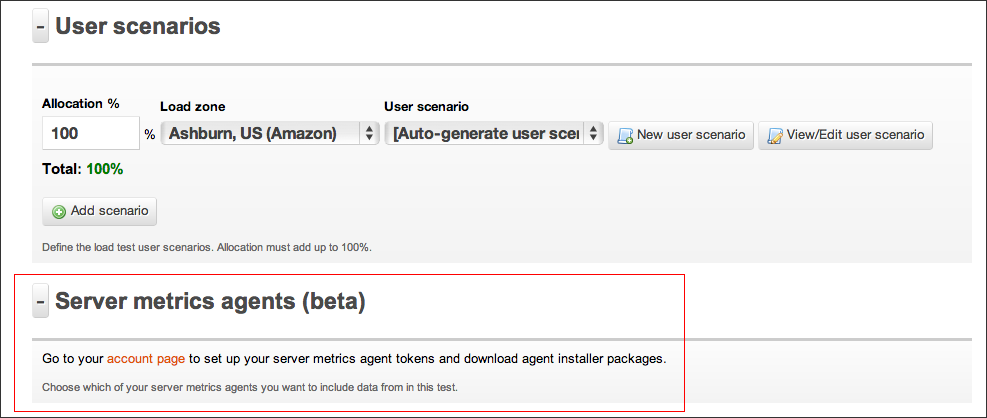
Go ahead and Log In to your account, then select the Test Configuration tab and create a new configuration. Alternatively, if you have current test configurations already set up, select one. Below the “User Scenarios” subsection, you should now find a section named “ Server Metrics”.  Click on “Go to Your account page”.
Alternatively, skip this step altogether and head straight to “Access Tokens” under the “Account” tab.

Step 2: Generating a Token

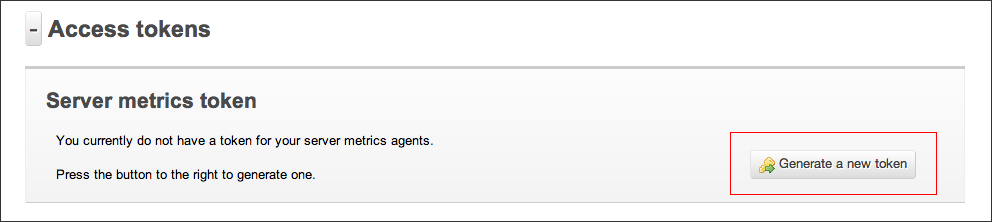
In order to identify our agents when they are talking to Load Impact, we need an identification key. We refer to this as a token. To generate a token, follow the instructions as stated.
(Yes, you only have to click on the “Generate a new token” button. Once :P)

Step 3: Download and install Server Metrics agent

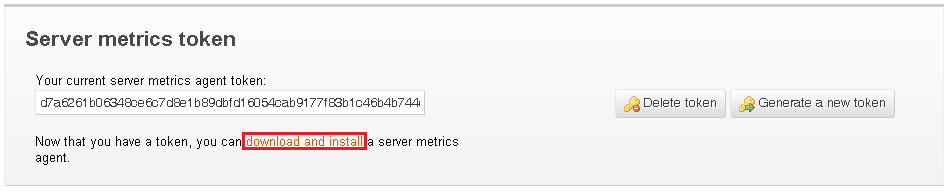
Now comes the hardest part. You’ll need to download and install our Server Metrics agent for your server platform. Installation should be as basic as following the instructions in our Wizard, on in the README file.

Step 4: Run your test!

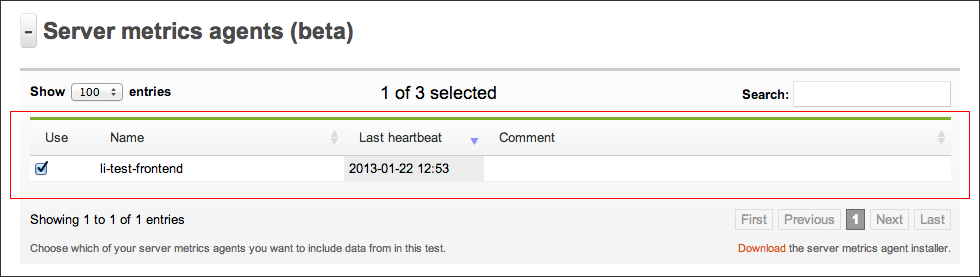
Once the server metrics agent is configured, you’ll immediately be able to select it in your Test Configuration (see Step 1). We recommend giving a name that describes the name of the server you’re installing it on for easier identification later on. From here, just configure and run your test as per normal.

Step 5: Viewing Server Metrics in your test results

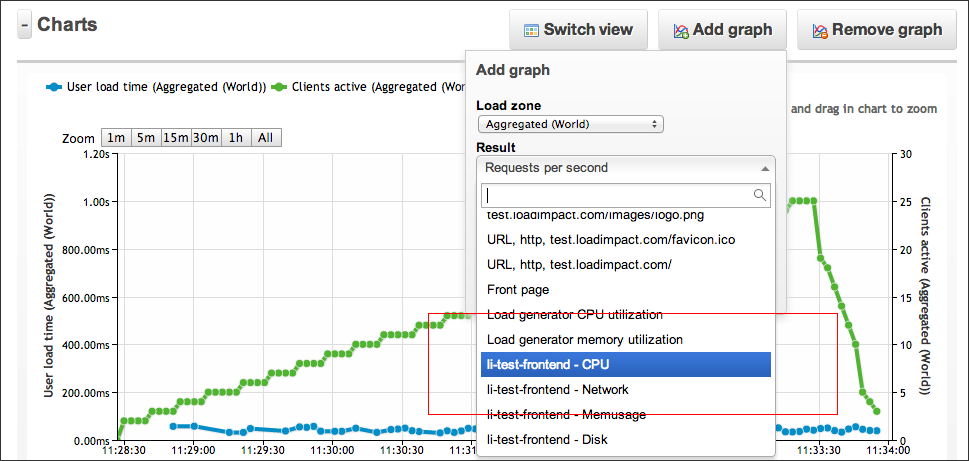
Once your test has started, you should be able to see your Server Metrics results in real time, just as with all of our other result graphs. Simply select the the kind(s) of server metrics you wish to view in the “Add Graph” drop down menu. This will plot the results for the specific server metric that you wish to view.

And that’s it! You’re all set towards easier bottleneck identification 🙂
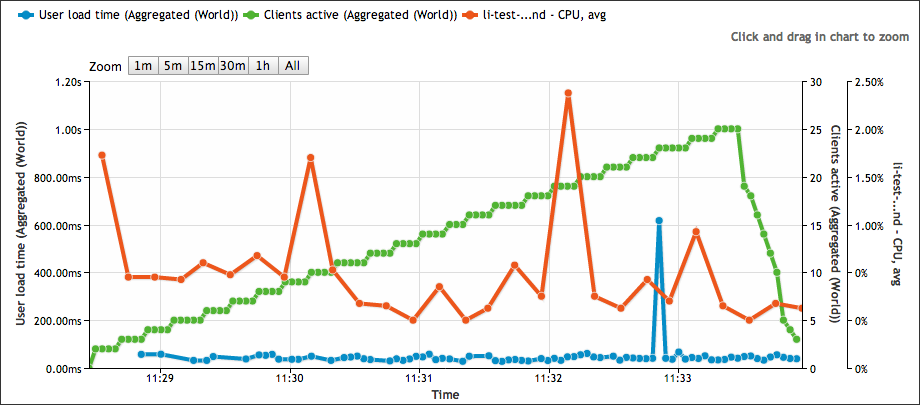
For an example of how these graphs are can help make your load testing life easier, take a look at the test results below. These results show your server’s CPU usage as load is being increased on your website.

Don’t think this is simple enough? Email support [at] loadimpact [dot] com to let us know how we can do one better!

Different types of website performance testing – Part 3: Spike Testing

This is the third of a series of posts describing the different types of web performance testing. In the first post, we gave an overview of what load testing is about and the different types of load tests available. Our second post gave an introduction to load testing in general, and described what a basic ramp-up schedule would look like.

We now we move on to spike testing. Spike testing is another form of stress testing that helps to determine how a system performs under a rapid increase of workload. This form of load testing helps to see if a system responds well and maintains stability during bursts of concurrent user activity over varying periods of time. This should also help to verify that an application is able to recover between periods of sudden peak activity.

So when should you run a spike test?

The following are some typical example case scenarios where we see users running a spike test, and how your load schedule should be configured in Load Impact to emulate the load.

Advertising campaigns

Advertising campaigns are one of the most common reasons why people run load tests. Why? Well, take a lesson from Coca Cola – With an ad spend of US$3.5 million for a 30 second Superbowl commercial slot (not including customer cost), it probably wasn’t the best impression to leave for customers who flooded to their Facebook app.. and possibly right into Pepsi’s arms. If you’re expecting customers to flood in during the ad campaign, ramping up in 1-3 minutes is probably a good idea. Be sure to hold the load time for at least twice the amount of time it takes users to run through the entire scenario so you get accurate and stable data in the process.

Contests

Some contests require quick response times as part of the challenge issued to users. The problem with this is that you might end up with what is almost akin to a DDOS attack every few minutes. A load schedule comprising of a number of sudden spikes would help to simulate such a situation.

TV screenings/Website launches

If you’re doing a live stream of a very popular TV show (think X Factor), you might want to consider getting a load test done prior to the event. Slow streaming times or a website crash is the fastest way to drive your customers to the next streaming app/online retailer available. Take Click Frenzy as an example – they’re still working to recover their reputation. Streaming servers also tend to be subject to prolonged stress when many users all flock to watch an event or show, so we recommend doing a relatively quick ramp up and ending with a long holding time.

Ticket sales

Remember the 2012 London Olympics? Thousands of frustrated sports fans failed to get tickets to the events they wanted. Not only was it a waste of time for customers, but it also served to be a logistics nightmare for event organizers. Bearing in mind that a number of users would be ‘camping’ out on the website awaiting ticket launch, try doing a two stage quick ramp up followed by a long holding time to simulate this traffic.

TechCrunched… literally!

If you are trying to get yourself featured on TechCrunch (or any similar website that potentially might generate a lot of readership), it’s probably a good idea to load test your site to make sure it can handle the amount of traffic. It wouldn’t do to get so much publicity and then have half of them go away with a bad taste in their mouth! In these cases, traffic tends to come in slightly slower and in more even bouts over longer periods of time. A load schedule like this would probably work better:


Secondary Testing

If your test fails at any one point of time during the initial spike test, one of the things you might want to consider doing is a step test. This would help you to isolate where the breaking points are, which would in turn allow you to identify bottlenecks. This is especially useful after a spike test, which could ramp up too quickly and give you an inaccurate picture of when your test starts to fail.


That being said, not all servers are built to handle huge spikes in activity. Failing to handle a spike test does not mean that these same servers cannot handle that amount of load. Some applications are only required to handle large constant streams of load, and are not expected to face sharp spikes of user activity. It is for this reason that Load Impact automatically increases ramp-up times with user load. These are suggested ramp up timings, but you can of course adjust them to better suit your use case scenario.

Code sample for automated load testing

In the previous post about automated load testing, we didn’t have the room to include a proper sample. So that’s what this post is going to be about. The complete code sample can be found here https://github.com/loadimpact/loadimpactapi-samples

A few comments if you want to try it out:

At the beginning, we net to set token and test id. If you haven’t already done so, you can generate an API token on your accounts page https://loadimpact.com/account/. Please note that the API token is not the same as the server metrics token. The next thing is to find the test configuration id that you want to run.

test_config_buttonAssuming that you already have an account and at least one test configuration created, you just go to your test configuration list and click on the test you’re interested in running. The URL will say https://loadimpact.com/test/config/edit/NNNNN where NNNNN is your test id. At the top of the test script, you find the two variables that you need to update. $token and $test_config_id.


$token = 'aaaaaaaaaaaaaaaaaaaaaaaaaaaaaaaaaaaaaaaaaaaaa';
$test_config_id = 1234567;
$verbose = TRUE;

Then, the interesting part of the script is quite straightforward:

$resp = loadimpactapi("test-configs/$test_config_id/start", 'POST');
if(isset($resp->id)) {
 $test_id = $resp->id; // The Id of the running test.
 $running = TRUE;
 $status = loadimpactapi("tests/$test_id", 'GET');
while($running) {
 if($verbose) echo "Test $test_id is {$status->status_text} \n";
 if($status->status > 2) { 
 $running = FALSE; 
 break;
 }
 sleep(15);
 $status = loadimpactapi("tests/$test_id", 'GET');
 }
// At this point, a status code != 3 would indicate a failure
 if($status->status == 3) {
 $jsonresult = loadimpactapi("tests/$test_id/results", 'GET');
 $timestamps = resulttoarray($jsonresult);
 echo responsetimeatmaxclients($timestamps) ."\n";
 }
} else {
 echo "Test $test_config_id failed to start \n";
}

Start the test, wait for it to finish and do something with the results. It’s really only the last part, ‘do something’ that’s deserves commenting on.

The LoadImpact API will return it’s data as two time series by default (you can ask for other time series as well). Basically, each of these two are a series of observations made during the test at given time intervals. The first series is the number of active clients seen at any given time. The other series represents the average response time from the test target. The two time series are synchronized via the timestamps (UNIX epoch). The code on github includes a function that massages these two time series into a single array of timestamps. At each timestamp, we can see number of active clients as well as the response time. So in the sample, I first run resulttoarray($jsonresult); so that I get an array that is easier to work with. Then I call responsetimeatmaxclients($timestamps) to find the response time found at the highest load during the test.

At the and, the return value is simply echoed to StdOut. Running the script, I’d get something like:


erik@erik-laptop$ php test.php
Test 1234567 is Created
Test 1234567 is Initializing
Test 1234567 is Running
Test 1234567 is Finished
3747.78

Since I’ve left $verbose=TRUE, I’ll get some status messages in the output. In a real scenario where the output is likely to be handled by a script, set $verbose=FALSE so that you just get the actual measurement back to StdOut.

Questions? Ideas? Opinions? Leave a comment below, we love to hear from you.

Automating Load Testing to Improve Web Application Performance

This blog post was originally written for the Rackspace DevOps blog. Check out this post and more great dev advice on their blog.

…….

Web application performance is a moving target. During design and implementation, a lot of big and small decisions are made that affect application performance – for good and bad. You’ve heard it before. But since performance can be ruined many times throughout a project, good application performance simply can not be added as an extra feature at the end of a project.

The modern solution to mitigate quality problems throughout the application development life cycle is called Continuous Integration, or just CI. The benefits of using CI are many, but for me, the most important factor for embracing CI is the ability to run automated tests frequently and to trace application performance, since such tests need to be added to the stack of automated tests already being generated. If you have load tests carried out throughout your project development, you can proactively trace how performance is affected.

The key is being able to automate load testing. But how do we do that? Naturally, it depends on your environment. Assuming that you’re building a web application and that your build environment is already in the cloud, it would be ideal to start using a cloud based load testing service such as Load Impact to automatically generate load and measure performance. In fact, libcurl will get you almost all the way.

Load Impact’s Continuous Delivery API was created to enable developers to run load tests programmatically. It’s an http based REST API that uses JSON for passing parameters. In its most basic form, you can run the following from a command line:

$ curl -X POST https://api.loadimpact.com/v2/test-configs/X/start -u token: {"id":Y}
$ curl -X GET https://api.loadimpact.com/v2/tests/Y/results -u token: > out.json

In this example X = the LoadImpact test config id, Y = the test result id and token = your LoadImpact API token. Please note that token is sent as an http username but with a blank password.

Since JSON is not that easy to work with from the command line, using PHP or Perl to wrap the calls in a script makes sense. A more complete sample doesn’t really fit into this blog post, but at a pseudo level you want to:

<?php

$token = '123456789';
$urlbase = 'https://api.loadimpact.com/v2/';
$config_id = 999;

// Start test and get id from JSON return
$test = http_post($urlbase . "/test-configs/$config_id/start"));

$done = FALSE;
while(!$done) {
  sleep(30);
  $status = http_get($urlbase . "/tests/{$test->id}");
  $if($status->status > 2) $done = TRUE;
}

$result = http_get($urlbase . "/tests{$test-id}/results");
$last = count($results->__li_user_load_time); 
echo $results->__li_user_load_time[$last]->value; ?>

First, some variables are set, the existing test configuration id and my API token being the most interesting.

Second, I ask Load Impact to launch the test configuration and store the test id. Wait for the test to finish by asking for its status code every 30 seconds.

Lastly, when I know the test if finished, I ask for the test result that I can then query for values. In this example, I simply echo the last measurement of the actual load time. If needed, the Load Impact API also allows me to manipulate the target URL before I launched the test, change the number of simulated users or make other relevant changes.

Running repeated load test as part of your CI solution will reveal a lot about how an application’s performance is affected by all those small decisions.

Note that you probably don’t want to run a full set of exhaustive performance tests at every build. I recommend that a few well-selected tests are executed. The key is to get a series of measurements that can be tracked over time.

About Load Impact

Load Impact is the leading cloud-based load testing software trusted by over 123,000 website, mobile app and API developers worldwide.

Companies like JWT, NASDAQ, The European Space Agency and ServiceNow have used Load Impact to detect, predict, and analyze performance problems.
 
Load Impact requires no download or installation, is completely free to try, and users can start a test with just one click.
 
Test your website, app or API at loadimpact.com

Enter your email address to follow this blog and receive notifications of new posts by email.