Performance & Scalability Test: Pantheon -VS- Other Drupal-Based Platforms

In this post I will demonstrate how to  setup a Drupal 7 site from scratch using Pantheon. Then, using Load Impact, I will attempt to compare the performance of Pantheon versus other Drupal-based platforms (Aberdeen Cloud platform and VPS).

Pantheon

For those who don’t know Pantheon, it’s a cloud platform for web development using different frameworks such as Drupal or WordPress. It provides development, testing and live environments for easy deployment using git. And since it’s built using containers instead of virtual machines, it’s performance and scalability is considerably better than traditional hosting providers.

Pantheon-howItWorks copy

Pantheon also provides a platform with preconfigured tools such as Varnish, Redis, Apache Solr, automated backups and application updates, etc.

For this performance test, we are going to need to create a Pantheon user account.

As a registered Pantheon user, we now see the Pantheon control panel:

1-your-sites

Now we need to create a site in order to install Drupal and run a performance test.

Steps to creating a Drupal 7 site using Pantheon

1. After registering an account with Pantheon, click “Create a site now” link.

2-account-ready

2. Next, provide some information about the site, such as the name and the access URL. Later, you can easily redirect your existing domain if you need it.

Press the “Create Site” button to continue with the process.

3-create-site


3. Create or import a site

You can create a site from scratch using one of the available web application cores for Drupal or WordPress, or you can import an existing one – packing your application files and database dump.

For this test, we are going to start a Drupal 7 site from scratch, but feel free to import your existing application if you want to compare its performance in Pantheon.

Select “Start from scratch” option and one of the available cores – in this case Drupal 7.

Press “Install Drupal 7” button to continue with the site installation.

Pantheon will setup the site with the best suitable configuration for Drupal 7.

6-create-drupal-site


4. Use the dashboard and configure your application

Once the site is completely installed you will have access to the site Dashboard where you can configure different aspects of your application, create backups and use the Pantheon tools.

10-dashboard

Now it’s time to install Drupal. As you can see, the site installer only copied Drupal 7 files but it didn’t execute Drupal installation.

You have to do it manually, so just press “Visit Development Site” button.

11-visit-development-site

5. Install Drupal

In this case, you are going to install Drupal 7 using a Pantheon profile – a custom Drupal distribution preconfigured with Pantheon modules and custom configuration that enables Drupal caching and provides better performance, and an Apache Solr integration.

Press “Save and continue” button to go to next installation step where you can select default language for Drupal. You can install Drupal 7 in other languages – but that can be done later.

Press “Save and continue” button again and Drupal will install with pre-selected Pantheon configuration.

After the installation you have to configure site details, such as site name or administrator username, password and email.

Once you’ve completed the form details, Drupal should be installed and ready to use.

12-drupal-choose-profile


6. Start using Drupal

To start using Drupal just press “Visit your new site” link and you will access your brand new Drupal 7 website.

7.  Setup your git repository in your local machine

Now it’s time to set up your git repository in your local machine so you can add or modify your Drupal website.

First of all, you need to add your SSH public key into your Pantheon user account. Just go to “Sites & Account” in your user menu.

18-sites-account

If you don’t already have a SSH key you have to create it. You can find more information about SSH key generation here: http://helpdesk.getpantheon.com/customer/portal/articles/366938-generate-ssh-keys

Once you have created your SSH key, you should add your Public Key just by pressing the “Add key” button. For more information about SSH keys, visit this page: http://helpdesk.getpantheon.com/customer/portal/articles/361246-loading-ssh-keys

Now you can connect to Pantheon git repository using SSH.

8. Configure the repository in your local machine

To configure the repository in your local machine you should have git previously configured. If you need to install git just follow this guide for all platforms https://help.github.com/articles/set-up-git

First you should copy the path to connect to your server using SSH, because you are going to need it later. You can find it in your project dashboard.

20-dashboard

We are going to use Git as connection mode so be sure that it’s selected and copy the URL you find in the textbox. As you can see in the following screenshot:

21-connection-mode

Go to your terminal and execute the following command from the location where you want to create your project repository folder (Don’t forget to use the URL you previously copied):

$ git clone ssh://codeserver.dev.xxx@codeserver.dev.xxx.drush.in:2222/~/repository.git drupal-loadimpact

If everything goes well, the command will create a folder named drupal-loadimpact with all the files corresponding to Drupal 7 core.

9. Install devel module

Now we are going to install devel module. This Drupal module will help us to creat thousands of nodes in our Drupal website.

A node is a Drupal piece of content with multiple fields and properties, and we are going to use them for our performance test.

You can download the module using wget or drush, but remember to place the module files into sites/all/modules directory in your repository folder.

Then add the new files for commit using the following command:

$ git add sites/all/modules/devel

Commit the changes into your local repository using a descriptive message:

$ git commit -m"Added devel module."

And finally push the changes to the remote repository:

$ git push origin master

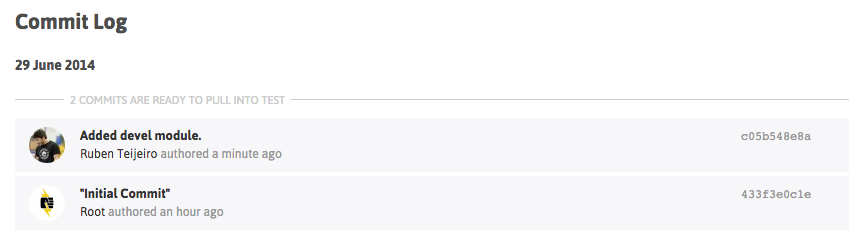
You can check that everything went well by checking the commit log in your project dashboard.
22-devel-module-commit

You can see the new commit with your descriptive message.

10.  Install devel module by enabling it in Drupal

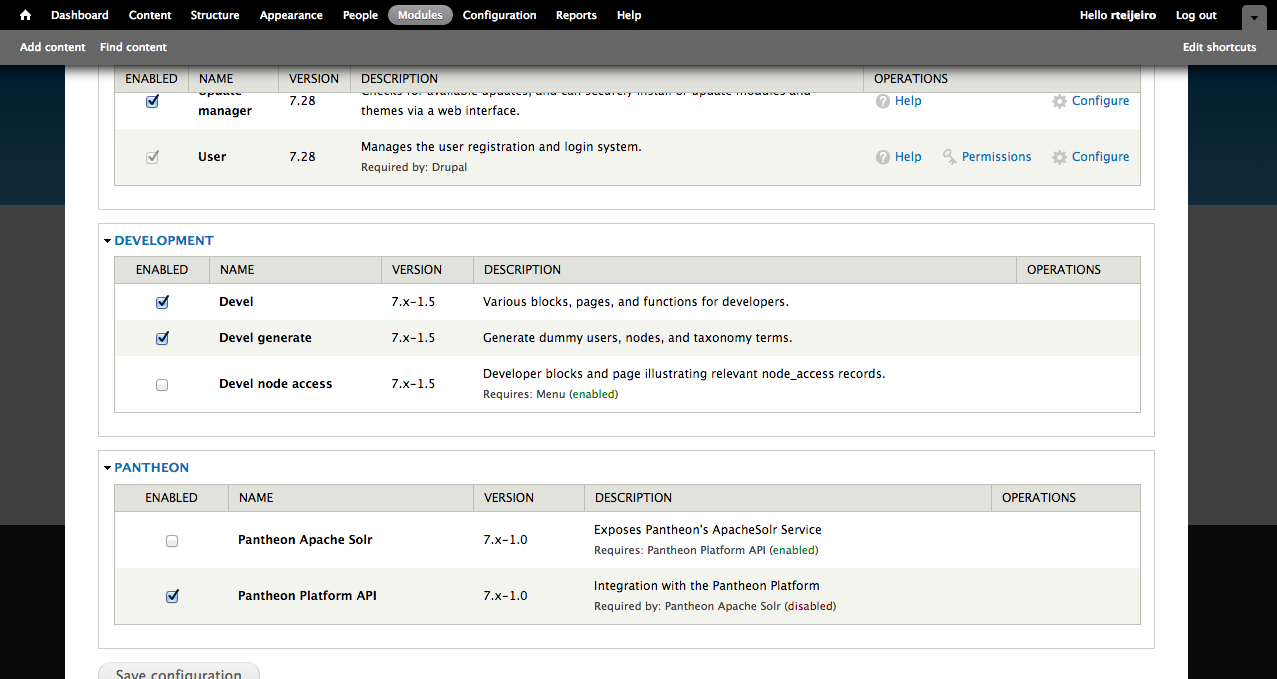
Select “Modules” menu option from the top menu in your Drupal site.

Enable only Devel and Devel generate modules.
23-drupal-modules


11. Generate content 

Now select “Configuration” menu option from the top menu. And then select “Generate content” option.

25-devel-menu


In this example, we are going to create 5000 nodes of type Article for our performance test. It should be enough to have a high amount of content in the Drupal database and create different performance tests.

27-devel-generate-content

Press “Generate” button and relax because it’s going to take a while. You can take a cup of coffee 😉

…. (coffee break)

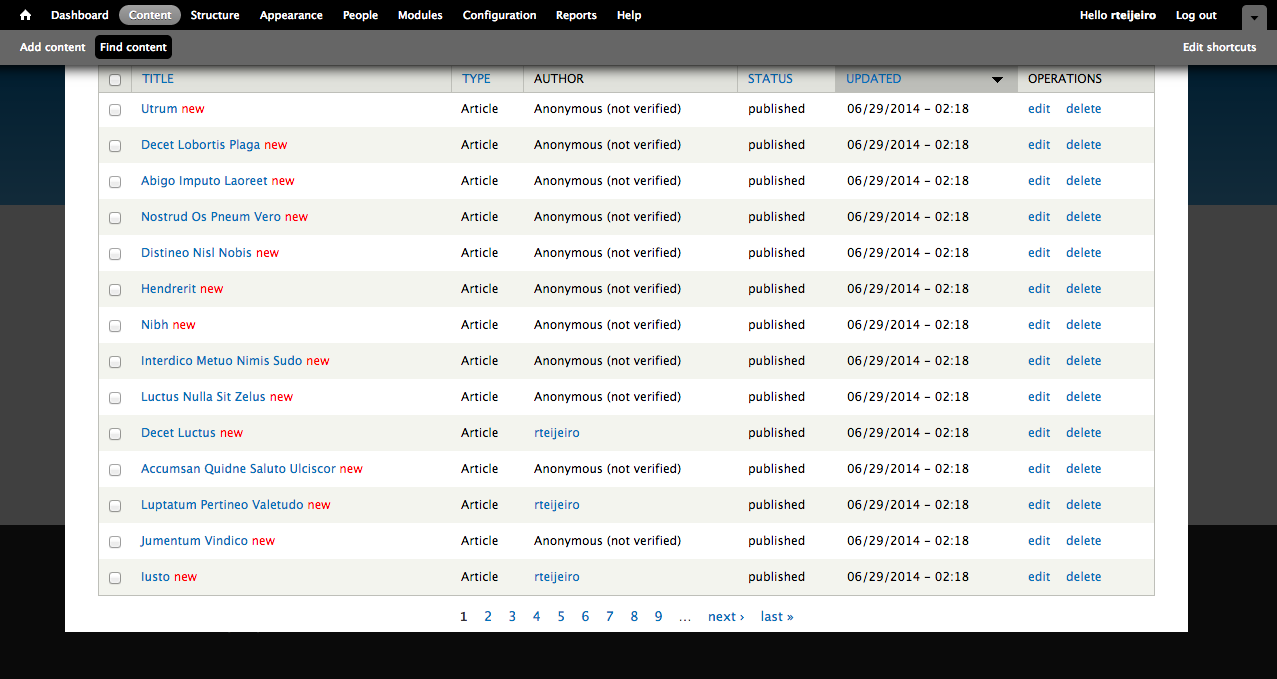
So, here you have your 5000 recently created articles. To see them just select “Content” from the top menu.
29-drupal-content

12. Create page listing all content (for performance testing purposes)

Now we are going to create a page that will list all the content so it will create a high amount of database queries and render a lot information in the page.

For that we will need Views (https://www.drupal.org/project/views) and Chaos Tools Suite (https://www.drupal.org/project/ctools) modules.

You can download them using the same method you used to download Devel module. Don’t forget to place them in sites/all/modules folder to let Drupal to find them and be able to install them.

Once you have downloaded the modules into your local repository, you can add and commit the modules into your local repository as we did before:

$ git add sites/all/modules/views
$ git commit -m”Added views module.”
$ git add sites/all/modules/ctools
$ git commit -m"Added ctools module."

Now push the changes to your remote repository:

$ git push origin master

Once again, you can see your commits in the Commit Log in your project dashboard and verify that everything went well.

To enable the modules, select “Modules” option in your top menu:

Enable Chaos tools module because it’s a dependency of Views module:

32-chaos-tools

Also enable Views and Views UI modules:

33-views-module-enable

Now select “Structure” option form the top menu to start creating your view page.

Then select “Views” option.

On this page you can find a list of preconfigured views. We are going to create our own view page with a list of a specific number of content articles.

35-views-list


13. Create and configure a new View

Select “Add new view” link to start.

Create a new view using the following configuration and press “Continue & edit” button.

37-views-create

This page is the configuration panel for your view. You can add fields, sorting order and filters as well as arguments and other custom features.

38-views-add-fields

We are going to add a few fields to display more content in the page.

Now you can see that there is only Title field available. Press the “Add” button in “Fields” section.

In the next window select Body and Image fields and press “Apply (all displays)” button with default settings for all fields.

40-views-select-fields

Now your “Fields” section should contain the following:

  • Content: Title
  • Content: Body(body)
  • Content: Image(image)

Press “Save” button to save your new view.

14. Visit your new page

Now you should be able to visit your page. The page we created for testing is here: http://dev-drupal-loadimpact.gotpantheon.com/performance-test

You should see a page with 100 article nodes –  which is a normal amount of data for Drupal to load.

It will create a considerable number of database queries and processes to render all the content into the page.

Consider to increase or decrease the number of items in the “Pager” section of your view if you want to test with different amount of data loaded.

You can select different values to adapt the performance test to your real needs.

43-views-pager-config


We have to take into consideration the default configuration that Pantheon profile applies to Drupal.

If you select “Configuration” in the top menu you can find “Performance” menu item:

44-performance-link

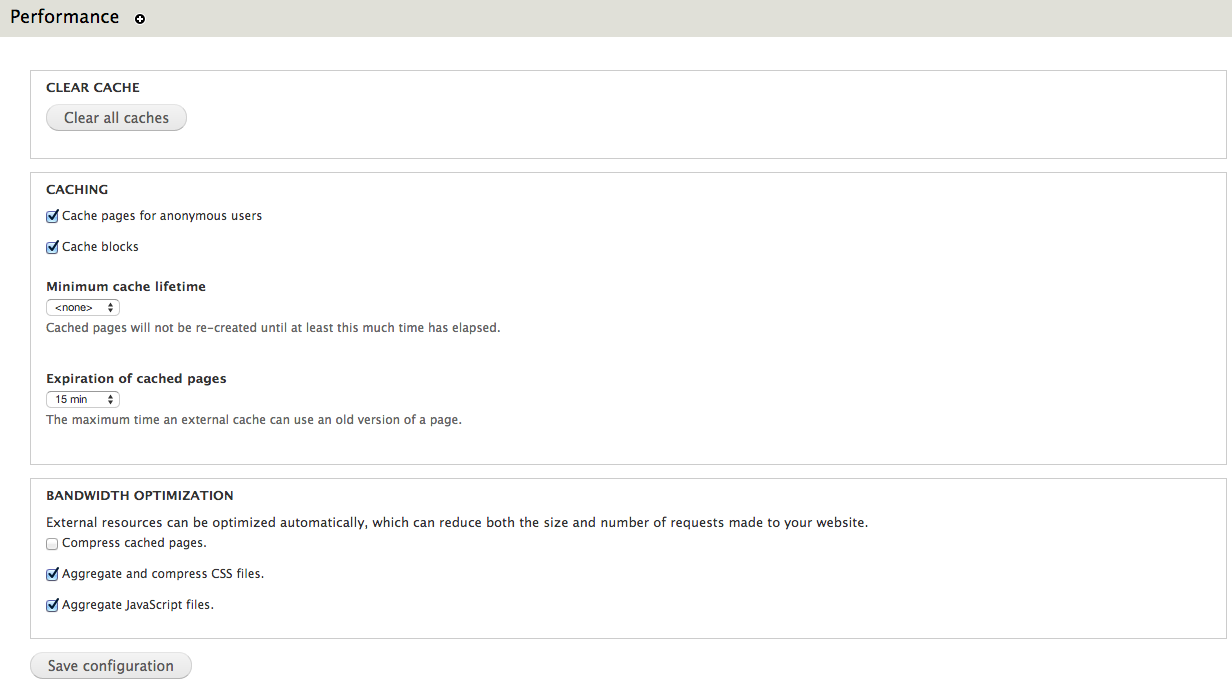
In this page you can find configuration settings related to Drupal performance. You can see that there are a few settings already enabled.

Page and block caches are enabled for 15 minutes. Also, CSS and JavaScript are aggregation is enable – what packs all CSS and JavaScript files and build them together in order to decrease the number of requests to the server to download all the files.
45-performance

It’s important to clear caches every time you run a new performance test to be sure that you don’t have cached pages. Just press “Clear all caches” button.

Testing the performance of Drupal-based platforms

Now it’s time for performance testing using Load Impact. Create a user account if you don’t already have one.

After that visit “My tests” to start creating your performance test and press “Start a new test” button. This will execute a rather small test of 50 concurrent users for 5 minutes.

47-my-tests

Type your test page URL into the text box and press “Start test” button.

You can also configure a larger test from the “Test configurations” page (e.g. with ramp-up/down; additional IPs, multi-geo load generation; mobile network emulation, server metrics, etc.)

48-start-test

The test will start and you will see how Load Impact is creating requests from different hosts.

50-test-running


Pantheon results

The following are the performance test results for the same Drupal site (using the same configuration and number of content nodes) hosted in Pantheon and Aberdeen Cloud platforms and a Virtual Private Server:

51-pantheon-test

Pantheon results (user load time)

Aberdeen Cloud 

52-aberdeencloud-test

Aberdeen Cloud results (user load time)

VPS (CPU: 1.5 Ghz. – RAM: 1 Gb.)

53-VPS-test

VPS results (user load time)


You can observe that Pantheon keeps user load time between 1.5 and 3 seconds, meanwhile with Aberdeen Cloud platform and the VPS, the user load time stays between 3 and 4 seconds.

Based solely on these few simple load tests, it seems Pantheon manages to serve Drupal pages at least one second faster than the other tested platforms. 

Now it’s time for you to try different configurations for the Drupal site, like number of content nodes, disable caching or file aggregation and see how it affects performance and scalability.

Read more about load and performance testing with Pantheon: http://helpdesk.getpantheon.com/customer/portal/articles/690128-load-and-performance-testing

——–

This blog post was written by Ruben Teijero. Follow the Load Impact blog (see below) for more great articles by Ruben and many other fantastic developers, testers and operations pros.

5 Lessons Learned After Self-Hosting Goes Haywire

When things start to go wrong it can sometimes be impossible to contain the unravelling – as if the problematic situation quickly gains momentum and begins to ‘snowball’ into an even worse situation.

This happened to me recently. And since much of what went wrong could have been prevented with good process controls, I believe I have some valuable lessons to share with you.

At the very least this post will be entertaining, as I assume many of you reading this will think to yourself: “yep, been there done that”.

I’ll start by mentioning how I met the folks at Load Impact and started working with their product and writing for them.

I was doing some shopping for a hosting provider for my personal and business website, and ran across someone else’s blog post that tested the performance of all the major players in the ‘affordable web hosting’ segment.  We are talking the $8/month type deals here – the bare bones.

This author used Load Impact to quantify the performance of all these providers and provided great insight into how they faired from a performance and scalability perspective.

My first thought was: awesome! – I’ll use that same tool and test a few out myself, and then compare it to the performance of a self-hosted site.  I already had a bunch of VMs running on an ESXI server so adding a turnkey wordpress site would be super easy.

It turns out that my self hosted site was much faster and scaled all I needed (thanks to Load Impact), so in the end I decided to just self host.

I’m not making any money from the sites – no ecommerce or ads – so it doesn’t really matter from a business perspective.It’s also easier to manage backups and control security when you manage the whole environment.

But it’s also much more likely that the whole thing will get screwed up in a major time-consuming way.

I imagine there are many SMBs out there that self host as well, for a variety of reasons.  It could be that you like having control of your company assets, it was faster and cheaper, or you just like doing everything yourself.

It’s often very difficult for smart people to avoid doing things they can do but probably shouldn’t do as it might not be the best use of their time.

In this blog post I’ll demonstrate how how quickly this situation can go wrong and then go from bad to worse:

Problem #1: my ISP screwed me!

If you are in business long enough, your ISP will screw you too.  I made a change to my service plan (added phone line) which I did the week before we went out of town.

For some reason nothing happened so I decided called my provider while 300 miles away from my house. Of course, this is exactly when things started to unravel.

Instead of provisioning my modem correctly, they removed my internet service and added phone.  No internet.  To make matter worse,  I’m not at home so I can’t troubleshoot.

Lesson #1 – don’t make changes with your ISP unless you can be onsite quickly to troubleshoot.

It was nearly impossible for me to troubleshoot this issue as I couldn’t VPN into my network, there wasn’t a connection at all.

I even had a neighbor come in and manually reboot both my firewall and modem.  That didn’t work, so my only recourse was a dreaded call to customer support.

The first time I called it was a total waste of time, the Customer Support agent had no idea what was going on so that call ended.

Call number two the next day was slightly more productive in that it ended 45 minutes later and a level 2 support ticket was opened.

Finally, upon getting a level 2 engineer on the line (I was home at this point), they immediately recognized that my modem was mis-provisioned and was setup for phone only!  It only took minutes to properly provision the modem and get it back online.

Lesson #2 – if you are technically savvy, then immediately demand a level 2 support engineer. Time spent with first line support is usually a totally frustrating time suck.

giphy

Problem #2: Some things start working again and others mysteriously don’t 

After the final problem-resolving phone call was complete I was tired, hot (AC was off while out of town) and irritated. So when the internet connection finally came back up, I wasn’t exactly in a “I’m making great decisions” mindset.

So I go to check my site and one works fine, but this one it not up at all.  I reboot the VM but still no response from the server.

I’m not sure what is going on.

Lesson #3 – Don’t start making significant changes to things when tired, hot and irritated.  It won’t go well.

This is exactly the point at which I should have made a copy of the VM in it’s current state to make sure I don’t make things worse.  But instead I immediately go to my backup server (Veeam) and try to restore the VM in question.

Well guess what?  That didn’t work either, some sort of problem with the storage repository for Veeam.  Unfortunately, the problem is that some of the backup data is corrupt.

I ended up with a partially restored but completely unusable webserver VM.

giphy-2

Lesson #4 – Test your backups regularly and make sure you have more than one copy of mission critical backups.  

At some point in this whole fiasco, I remembered what this package I had on my desk was.  It was a replacement hard drive for my ZFS array because one of my 4 drives in the RAIDZ1 array was “failing”.

I figured that now would be the perfect time to swap that drive out and allow the array to heal itself.

Under normal circumstances this is a trivial operation, no big deal.  Not this time!

This time, instead of replacing the failing hard drive, I accidentally replace a perfectly good drive!

So now I have a really tenuous situation with a degraded array that includes a failing hard drive and no redundancy whatsoever.

Fortunately there wasn’t any real data loss and eventually I was able to restore the VM from a good backup source.

Finally back online!

Lesson #5 – Be extra diligent when working on your storage systems and refer to Lesson #3.

The overall message here is most, if not all, of these issues could have been easily avoided. But that is the case 99% of the time in IT – people make mistakes, there is a lack of good well documented processes to handle outages, and of course hardware will fail.

It’s also worth noting that in large enterprises mechanisms for change control are usually in place – preventing staff from really messing things up or making changes during business hours.

Unfortunately, many of smaller businesses don’t have those constraints.

So what does this have to do with Load Impact?  Nothing directly…but I think it’s important for people to be aware of the impact that load and performance testing can have on the infrastructure that runs your business and plan accordingly when executing test plans.

Just like you wouldn’t do something stupid like changing network configs, ISP settings or Storage without thoroughly thinking it through, you should also not unleash a world-wide load test with 10,000 concurrent users without thinking about when you should execute the test (hint – schedule it) and what the impact will be on the production systems.

Hopefully there is a test/dev or pre-production environment where testing can take place continuously, but don’t forget many times there are shared resources like firewalls and routers that may still be affected even if the web/app tiers may not be.

And always remember Murphy’s lawAnything that can go wrong will go wrong. 

———-

Peter CannellThis post was written by Peter Cannell. Peter has been a sales and engineering professional in the IT industry for over 15 years. His experience spans multiple disciplines including Networking, Security, Virtualization and Applications. He enjoys writing about technology and offering a practical perspective to new technologies and how they can be deployed. Follow Peter on his blog or connect with him on Linkedin.

Don’t miss Peter’s next post, subscribe to the Load Impact blog by clicking the “follow” button below. 

[Case Study] How One Digital Agency Guaranteed Performance BEFORE a Big Release

JWT, one of the largest advertising agencies in the United States and the fourth-largest in the world, used Load Impact to perform load tests to verify that their new campaign site could handle up to 120,000 visitors/hour.

Background:

According to an independent global research study undertaken by Vanson Bourne, even minor delays to website response times can have a sizable impact on customer satisfaction, page views, conversion rates and site abandonment. Despite this, an astonishing 68% of website owners experienced performance or stability problems and 32% of organizations do not know if their website is monitored on a 24×7 basis*. To make matters worse, 47% of PC visitors, 69% of tablet visitors and 34% of smartphone visitors expect response times equal to or below 2 seconds**. 

In an effort to ensure quality performance of a new campaign website built for a client in the pharmaceutical industry, Load Impact was commissioned to establish that the backend for the website could handle the expected traffic – 120,000 visitors per hour – while exhibiting load times that were within acceptable limits.

The campaign-site was built with a user signup/login procedure and offers an interactive online game. The backend for the service is hosted in Texas, and all static content is distributed through a CDN which makes calls to the backend servers. There is also an external partner which handles the user database including registration, signup etc.

Test setup:

For the purpose of testing the backend only, a set of specific user actions were defined, such as “user registration”, “user sign-in”, and other actions where the backend systems had to be involved. These actions were activated through requesting certain URLs, one for each type of action, that were created specifically for the load test. In practice it meant that a simple API was created only for running the load test.

The simulated users in the test were configured to perform a series of these predefined user actions, resulting in corresponding calls to the backend systems. The static content, normally served through CDN operators, was ignored in the test.

The test was run as a series of 5 minute ramp-up tests (simulating approximately 8.33 clients per second), individually tuned depending on results of previous tests and designed to find out the breaking point of the target system.  

Service environment:

  • Apache
  • PHP
  • MySQL
  • Linux

The tested environment consisted of an HTTP load balancer plus web-, application- and database servers.

Challenges:

There were numerous challenges that the test was designed to detect. First of all, there was a need to validate that the system could handle the expected amount of traffic and establish a performance baseline. The test was also set-up to detect potential problems in the infrastructure and web app. 

  • Validate that the system could handle the expected amount of traffic
  • Detect potential problems in the infrastructure or web app
  • Establish a performance baseline

Solution:

The solution agreed upon was to generate and measure load from multiple geographic locations as well as to measure response times, throughput and customer experience.  

  • Load generation and measurements from multiple geographic locations
  • Application response time, throughput and customer experience analysis provided for JWT

Results:

The results of the load test revealed that the campaign website could withstand the expected traffic and there were no specific performance problems with the site. Therefore, a baseline was established at about the required level of 120k visitors/hour.


The external service provider of user registration and sign-in functionality had no problems and their response times remained constant during the tests while the other backend services exhibited response times that were stable until just over the required level of 120,000 visitors/hour, after which response times started to increase rapidly and exponentially.

Specifically, the response times for the start page were under 1 second for up to 2,000 concurrent visitors. Response times for the configured tests, which included the set of specific user actions, were under 2 seconds for up to 2,000 concurrent visitors. Considering that the average response time for similar campaigns of this size is above 4 seconds*, these results were impressive. 

The campaign site was launched successfully on YouTube.

*Source: State of Web Readiness Report, Load Impact, 2013

**Source: How To Deliver Fast, Engaging Responsive Web Design Sites, Akamai, 2012

Automated Acceptance Testing with Load Impact and TeamCity (New Plugin)

teamcity512

As you know, Continuous Integration (CI) is used by software engineers to merge multiple developers’ work several times a day. And load testing is how companies make sure that code performs well under normal or heavy use.

So, naturally, we thought it wise to develop a plugin for one of the most widely used CI servers out there – TeamCity by JetBrains. TeamCity is used by developers at a diverse set of industry leaders around the world – from Apple, Twitter and Intel, to Boeing, Volkswagen and Bank of America. It’s pretty awesome!

The new plugin gives TeamCity users access to multi-source load testing from up to 12 geographically distributed locations worldwide, advanced scripting, a Chrome Extension  to easily create scenarios simulating multiple typical users, and Load Impact’s Server Metrics Agent (SMA) for correlating the server side impact of testing – like CPU, memory, disk space and network usage.

Using our plugin for TeamCity makes it incredibly easy for companies to add regular, automated load tests to their nightly test suites, and as a result, get continuous feedback on how their evolving code base is performing. Any performance degradation, or improvement is detected immediately when the code that causes it is checked in, which means developers always know if their recent changes were good or bad for performance – they’re guided to writing code that performs well.


Here’s how Load Impact fits in the TeamCity CI workflow:CD-TeamCity


TeamCity-Button


Once you have the plugin installed, follow this guide for installing and configuring the Load Impact plugin for TeamCity. 

The Demise of Healthcare.gov and the Importance of Testing

Most people have probably already heard about the less than successful launch of http://www.healthcare.gov, often colloquially referred to as the ‘Obamacare website’. Bloggers and news agencies quickly jumped on the bandwagon to point out every piece of available evidence that this project is deeply flawed in every single way. Fingers have been pointing and names have been called. And let’s not start talking about what ObamaCare’s political opponents have said.

Certainly, there are plenty of differing opinions out there about what went wrong: Some will say that this is a reinforcing evidence that large software projects with too many people involved is a management nightmare that almost without exception, ends in failure until it hits version 3.0. While others will tell you that this is simply an expected outcome whenever the government embarks on just about anything. A third group will point to specific technical flaws that have emerged and it’s a clear indication that both management and the software engineers involved are simply bad people making kindergarten level mistakes.

So, what has this got to do with load testing? Quite a lot actually. As the makers of a very popular cloud-based load testing tool, we’ve always been advocates of tools and methodologies that leads to good and verifiable software quality.

Admittedly, we specialized in performance testing, but in this case it goes beyond that. Our opinion on what went wrong and what should have been done takes a non-political stand, in fact it’s pretty much neutral on development methodology and we definitely won’t call names. Just like in politics, our opinion boils down simply – it’s all about priorities.

Take a minute to think about the phrases ‘software quality’ and ‘verifiable software quality’. That additional word in the latter phrase means a lot and it changes everything. I can safely bet that this is something 100% of all software project managers covet, I mean, who wouldn’t? Yet it’s safe to say that less than 50% of all software PM’s can confidently claim that their projects have achieved it.

And why is that? Well, we’ve discussed it before here, when we briefly commented on our State of Web Readiness study. To begin, software quality doesn’t automatically materialize out of thin air in a project just because you have hired the crème de la crème of developers (how would you even define that?), let alone even the most experienced developers.

You will have good software quality if you make it a priority; not with a mere ‘Should-have’ but a ‘top of the line, grade A must-have’ type of priority. Then, when you’ve decided that quality is top priority in your project (again, who wouldn’t?), adding the concept of verifiable software quality is another leap.

Going from the intention of developing good quality software to measuring it is a big but essential step. A lot of development organizations around the world have taken this step and I would be surprised if any of them regretted choosing it. Surely, it involves some form of upfront investment to do it correctly but once you’ve taken the initial steps, your project will benefit from the fruits of your labour.

I’m sure that what I’m saying here is not new to anyone involved in the healthcare.gov project. In a software project north of 500 million USD there’s bound to be many software quality assurance tools in place already. If I should guess, I’d say that the problem with the healthcare.gov project was a problem of test coverage. Evidently, some areas weren’t tested at all, while a large portion of the project hadn’t been tested in all aspects as it should.

What about performance testing? Well, it should be obvious that a system that needs to handle tens of thousands of concurrent users needs to be tested for performance in general and specifically to be tested under load; not just at the end but throughout all development cycles.

In the news we’ve read about an internal 100-user test that was done just one week before launch that managed to bring the site down. It is apparent that load testing the entire site hadn’t been carried out correctly, or worse, not at all.

To round up, I will offer two pieces of unsolicited advice to the entire team behind healthcare.gov:

Number one, don’t panic! Panic is probably what brought you into here in the first place.

Secondly, commit to verifiable software quality and use tools. Tools that measure how you’re doing, tools to verify you’re on the right track and to help you find unacceptable quality. And when you realize you need a really good load testing tool, give us a call.

By: Erik Torsner (@eriktorsner)

Top 5 ways to improve WordPress under load

WordPress claims that more than 63 million web sites are running the WordPress software. So for a lot of users, understanding how to make WordPress handle load is important. Optimizing WordPress ability to handle load is very closely related to optimizing the general performance, a subject with a lot of opinions out there. We’ve actually talked about this issue before on this blog. Here’s the top 5 things we recommend you do to fix before you write that successful blog post that drives massive amounts of visitors.

#1 – Keep everything clean and up to date

Make sure that everything in WordPress is up to date. While this is not primarily a performance consideration, it’s mostly important for security reasons. But various plugins do gradually become better and better with performance issues, so it’s a good idea to keep WordPress core, all plugins as well as your theme up to date. And do check for updates often, I have 15 active plugins on my blog and I’d say that there’s 4-6 upgrades available per month on average. The other thing to look out for is to keep things clean. Remove all themes and plugins that you don’t currently use. Deactivate and physically delete them. As an example, at the time of writing this. my personal blog had 9 plugins that needed upgrading and I had also let the default WordPress theme in there. I think it’s a pretty common situation so do what I did and make those upgrades.

#2 – Keep the database optimized

There are two ways that WordPress databases can become a performance problem. First is that WordPress stores revisions of all posts and pages automatically. It’s there so that you always can go back to a previous version of a post. As handy as that can be, it also means that the one db table with the most queries gets cluttered. On my blog, I have about 30 posts but 173 rows in the wp_posts table. For any functionality that lists recent posts, related posts and similar, this means that the queries takes longer. Similary, the wp_comments table keeps a copy of all comments that you’ve marked as spam, so the wp_comments table may also gradually grow to become a performance problem. The other way that you can optimize the WordPress database is to have mysql do some internal cleanup. Over time the internal structure of the mysql tables also becomes a cluttered. Mysql provides an internal command for this: ‘optimze table [table_name]’. Running optimize table can improve query performance a couple of percent with in turn improves the page load performance. Instead of using phpmyadmin to manually delete old post revisions and to run the optimize table command, you should use a plugin to do that, for instance WP Optimize. Installing Wp optimize on my blog, it told me that the current database size was 7.8 Mb and that it could potentially remove 1.3 Mb from it. It also tells me that a few important tables can be optimized, for instance wp_options that is used in every single page request that WordPress will ever handle.

#3 – Use a cache plugin

Probably the single most effective way to improve the amount of traffic your WordPress web site can handle is to use a cache plugin. We’ve tested cache plugins previously on the Load Impact blog, so we feel quite confident about this advice. The plugin that came out on top in our tests a few years ago was W3 Total Cache. Setting up W3 Total Cache requires some attention to details that is well beyond what other WordPress plugins typically requires. My best advice is to read the installation requirements carefully before enabling the page cache functionality since not all features will work on all hosting environments. Read more about various WordPress cache plugins here, but be sure to read the follow up.

#4 – Start using a CDN

By using a CDN (content delivery network), you get two great performance enhancements at once. First of all, web browsers limit the number of concurrent connections to your server, so when downloading all the static content from your WordPress install (css, images, javascripts etc.), they actually queue up since not all of them is downloaded at the same time. By placing as much content as possible on a CDN, you work around this limitation since your static content is now served from a different wen server. The other advantage you get is that CDN typically have more servers than you do and there’s a big chance that (a) one of their servers is closer to the end user than your server and (b) that they have more bandwidth than you do. There are a number of ways you can add CDN to your WordPress install. W3 Total Cache from #3 above handles several CDN providers (Cloudflare, Amazon, Rackspace) or even lets you provide your own. Another great alternative is to use the CloudFlare WordPress plugin that they provide themselves.

#5 Optimize images (and css/js)

Looking at the content that needs to be downloaded, regardless if it’s from a CDN or from your own server, it makes sense to optimize it. For css and js files, a modern CDN provider like CloudFlare can actually minify it for you. And if you don’t go all the way to use an external CDN, the W3 Total Cache plugin can also do it for you. For images you want to keep the downloaded size as low as possible. Yahoo! has an image optimizer called Smush.it that will drastically reduce the file size of an image, while not reducing quality. But rather than dealing with every image individually, you can use a great plugin name WP-Smushit that does this for you as you go along.

Conclusion and next step

There are lots and lots of content online that will help you optimize WordPress performance and I guess it’s no secret that these top 5 tips are not the end of it. In the next post, I will show you how a few of these advises measures up in reality in the LoadImpact test bench.

Node.js vs PHP – using Load Impact to visualize node.js efficiency

It could be said that Node.js is the new darling of web server technology. LinkedIn have had very good results with it and there are places on the Internet that will tell you it can cure cancer.

In the mean time, the old work horse language of the Internet, PHP, gets a steady stream of criticism. and among the 14k Google hits for “PHP sucks” (exact term), people will say the most funny terrible things about the language while some of the critique is actually quite well balanced. Node.js introduces at least two new things (for a broader audience). First, the ability to write server side JavaScript code. In theory this could be an advantage since JavaScript is more important than ever on the client side and using the same language on server and browser would have many benefits. That’s at least quite cool.

The other thing that makes Node.js different is that it’s completely asynchronous and event driven. Node is based on the realization that a lot of computer code actually just sits idle and wait for I/O most of the time, like waiting for a file to be written to disk or for a MySQL query to return data. To accomplish that, more or less every single function in Node.js is non-blocking.

When you ask for node to open a file, you don’t wait for it to return. Instead, you tell node what function to pass the results to and get on with executing other statements. This leads to a dramatically different way to structure your code with deeply nested callbacks and anonymous function and closures. You end up with something  like this:

doSomething(val, function(err,result){
  doSomethingElse(result,function(err,res){
    doAbra();
    doKadabra(err, res, function() {
      ...
      ...
    });
  });
});

It’s quite easy to end up with very deep nesting that in my opinion sometimes affects code readability in a negative way. But compared to what gets said about PHP, that’s very mild critique. And.. oh! The third thing that is quite different is that in Node.js, you don’t have to use a separate http(s) server. It’s quite common to put Node.js behind a Nginx, but that’s not strictly needed. So the heart of a typical Node.js web application is the implementation of the actual web server.

A fair way to compare

So no, it’s not fair to say that we compare Node.js and PHP. What we really compare is Node.js and PHP+Apache2 (or any other http server). For this article, I’ve used Apache2 and mod_php since it’s by far the most common configuration. Some might say that I’d get much better results if I had used Nginx or Lighthttpd as the http server for PHP. That’s most likely very true, but at the end of the day, server side PHP depends on running in multiple separate processes. Regardless if we create those processes with mod_php or fastcgi or any other mechanism. So, I’m sticking with the standard server setup for PHP and I think that makes good sense.

The testing environment

So we’re pitting PHP+Apache2 against a Node.js based application. To keep things reasonable, I’ve created a very (really, very) simple application in both PHP5 and Node.js. The application will get 50 rows of data from a WordPress installation and output it as a json string. That’s it, nothing more. The benefit of keeping it this simple was (a) that I didn’t have to bother about too many implementation details between the two languages and (b) more important that we’re not testing my ability to code, we’re really testing the difference in architecture between the two. The server we’re  using for this test is a virtual server with:

  • 1 x Core Intel(R) Xeon(R) CPU E5-2670 0 @ 2.60GHz
  • 2 Gb RAM.
  • OS is 64 Bit Ubuntu 12.10 installed fresh before running these tests.
  • We installed the Load Impact Server metric agent.

For the tests, we’re using:

  • Apache/2.2.22 and
  • PHP 5.4.6.
  • Node.js version 0.8.18 (built using this script)
  • MySQL is version 5.5.29.
  • The data table in the tests is the options table from a random WordPress blog.
The scripts we’re using:

Node.js (javascript):

// Include http module,
var http = require('http'),
mysql = require("mysql");

// Create the connection.
// Data is default to new mysql installation and should be changed according to your configuration.
var connection = mysql.createConnection({
   user: "wp",
   password: "****",
   database: "random"
});

// Create the http server.
http.createServer(function (request, response) {
   // Attach listener on end event.
   request.on('end', function () {

      // Query the database.
      connection.query('SELECT * FROM wp_options limit 50;', function (error, rows, fields) {
         response.writeHead(200, {
            'Content-Type': 'text/html'
         });
         // Send data as JSON string.
         // Rows variable holds the result of the query.
         response.end(JSON.stringify(rows));
      });
   });
// Listen on the 8080 port.
}).listen(8080);

PHP code:

<!--?php $db = new PDO('mysql:host=localhost;dbname=*****',     'wp',     '*****'); $all= $db--->query('SELECT * FROM wp_options limit 50;')->fetchAll();
echo json_encode($all);

The PHP script is obviously much shorter, but on the other hand it doesn’t have to implement a full http server either.

Running the tests

The Load Impact test configurations are also very simple, these two scripts are after all typical one trick ponies, so there’s not that much of bells and whistles to use here. To be honest, I was surprised how many concurrent users I had to use in order to bring the difference out into the light. The test scripts had the following parameters:

  • The ramp up went from 0-500 users in 5 minutes
  • 100% of the traffic comes from one source (Ashburn US)
  • Server metrics agent enabled
The graphics:
On the below images. the lines have the following meanings:
  • Green line: Concurrent users
  • Blue line: Response time
  • Red line: Server CPU usage

Node.js up to 500 users.

The first graph here shows what happens when we load test the Node.js server. The response time (blue) is pretty much constant all through the test. My back of a napkin analysis of the initial outliers is that they have to do with a cold MySQL cache. Now, have a look at the results from the PHP test:

Quite different results. It’s not easy to see on this screen shot, but the blue lines is initially stable at 320 ms response time up to about 340 active concurrent users. After that, we first see a small increase in response time but after additional active concurrent users are added, the response time eventually goes through the roof completely.

So what’s wrong with PHP/Apache?

Ok, so what we’re looking at is not very surprising, it’s the difference in architecture between the two solutions. Let’s think about what goes on in each case.

When Apache2 serves up the PHP page it leaves the PHP execution to a specific child process. That child process can only handle one PHP request at a time so if there are more requests than than, the others have to wait. On this server, there’s a maximum of 256 clients (MaxClients) configured vs 150 that comes standard. Even if it’s possible to increase MaxClients to well beyond 256, that will in turn give you a problem with internal memory (RAM). At the end, you need to find the correct balance between max nr of concurrent requests and available server resources.

But for Node, it’s easier. First of all, in the calm territory, each request is about 30% faster than for PHP, so in pure performance in this extremely basic setup, Node is quicker. Also going for Node is the fact that everything is in one single process on the server. One process with one active request handling thread. So thre’s no inter process communication between different instances and the ‘mother’ process. Also, per request, Node is much more memory efficient. PHP/Apache needs to have a lot of php and process overhead per concurrent worker/client while Node will share most of it’s memory between the requests.

Also note that in both these tests, CPU load was never a problem. Even if CPU loads varies with concurrent users in both tests it stays below 5% (and yes, I did not just rely on the graph, I checked it on the server as well). (I’ll write a follow up on this article at some point when I can include server memory usage as well). So we haven’t loaded this server into oblivion in any way, we’ve just loaded it hard enough for the PHP/Aapache architecture to start showing some of it’s problems.

So if Node.js is so good…

Well of course. There are challenges with Node, both technical and cultural. On the technical side, the core design idea in Node is to have one process with one thread makes it a bit of a challenge to scale up on a multi core server. You may have already noted that the test machine uses only one core which is an unfair advantage to Node. If it had 2 cores, PHP/Apache would have been able to use that, but for Node to do the same, you have to do some tricks.

On the cultural side, PHP is still “everywhere” and Node is not. So if you decide to go with Node, you need to prepare to do a lot more work yourself, there’s simply nowhere near as many coders, web hotels, computer book authors, world leading CMS’es and what have you. With PHP, you never walk alone.

Conclusion

Hopefully, this shows the inherit differences in two different server technologies. One old trusted and one young and trending. Hopefully it’s apparent that your core technical choices will affect your server performance and in the end, how much load you can take. Designing for high load and high scalability begins early in the process, before the first line of code is ever written.

And sure, in real life, there are numerous of tricks available to reduce the effects seen here. In real life, lots of Facebook still runs on PHP.

WordPress load testing part 3 – Multi language woes

Understanding the effects of memory starvation.

This is the third part in a series of posts about WordPress and performance. In part 1,
we took a look at WordPress in general. In part 2 and part 2.5 we reviewed a couple of popular caching plugins that can boost performance. In this part, we’ll start looking at how various plugins can have a negative effect on performance and if anything can be done about it.

In the comments for one of the previous posts in this series, Yaakov Albietz asked us if we used our own service www.loadimpact.com for the tests. I realize that I haven’t been that obvious about that, but yes, absolutely, we’re exlusively using our own service. The cool thing is that so can you! If you’re curious about how your own web site handles load, take it for a spin using our service. It’s free.

We started out by looking for plugins that could have a negative effect on WordPress performance, thinking, what are the typical properties of a bad performer plugin? Not so obvious as one could think. We installed, tested and tinkered with plenty of suspects without finding anything really interesting to report on. But as it happens, a friend of a friend had just installed the WordPress Multi Language plugin and noted some performance issues. Worth taking a look at.

The plugin in question is WordPress Multi Language (WPML). It’s got a high rating among the WordPress community wich makes it even more interesting to have look at. Said and done, we installed WPML and had it for a spin.

The installation is really straight forward. As long as your file permissions are set up correctly and the WordPress database user have permissions to create tables, it’s a 5-6 click process. Install, activate, select default language and at least one additional language and your done. We’re eager to test, so as soon as we had the software in place, we did our first test run on our 10 post WordPress test blog. Here’s the graph:

Average load times 10 to 50 users

Ops! The baseline tests we did for this WordPress installation gave a 1220 ms response time when using 50 concurrent users. We’re looking at something completely different here. At 40 concurrent users we’re getting 2120 ms and at 50 users we’re all the way up to 5.6 seconds or 5600 ms. That needs to be examined a bit more.

Our first suspicion was that WPML would put additional load on the MySQL server. Our analysis was actually quite simple. For each page that needs to be rendered, WordPress now have to check if any of the posts or pages that appears on that page have a translated version for the selected language. WPML handles that magic by hooking into the main WordPress loop. The hook rewrites the MySQL query about to be sent to the database so that instead of a simple “select foo from bar” statement (over simplified), it’s a more complex JOIN that would typically require more work from the database engine. A prime performance degradation suspect unless it’s carefully written and matched with sensible indexes.

So we reran the test. While that test was running we sat down and had a look at the server to see if we could easily spot the problem. In this case, looking at the server means log in via ssh and run the top command (if it had been a Microsoft Windows box, we’d probably have used the Sysinternals Process Exporer utility) to see what’s there. Typically, we’d want to know if the server is out of CPU power, RAM memory or some combination. We were expecting to see the mysqld process consume lots of CPU and verify our thesis above. By just keeping an unscientific eye on top and writing down the rough numbers while the test was running, we saw a very clear trend but it was not related to heavy mysqld CPU usage:

20 users: 65-75% idle CPU 640 MB free RAM
30 users: 50-55% idle CPU 430 MB free RAM
40 users: 45-50% idle CPU 210 MB free RAM
50 users: 0%   idle CPU  32 MB free RAM

As more and more users was added we saw CPU resource usage go up and free memory availability go down, as one would expect. The interesting things is that at 50 users we noted that memory was extremely scarce and that the CPU had no idle time at all. Memory consumption increases in a linear fashion, but CPU usage suddenly peaks. That sudden peak in CPU usage was due to swapping. When the server comes to the point where RAM is running low, it’s going to do a lot more swapping to disk and that takes time and eats CPU. With this background information in place, we just had to see what happended when going beyond 50 users:

That’s very consistent with what we could have expected. Around 50 concurrent users, the server is out of memory and there’s a lot of swapping going on. Increasing the load above 50 users will make the situation even worse. Looking at top during the later stages of this test confirms the picture. The kswapd process is using 66% percent of the server CPU resources and there’s a steady queue of apache2 processes waiting to get their share. And let’s also notice that mysqld is nowhere to be seen (yes, this image is only showing the first 8 processes, you just have to take my word for it).


The results from this series of tests are not WPML specific but universal. As we put more and more stress on the web server, both memory and CPU consumption will rise. At some point we will reach the limit of what the server can handle and something got to give. When it does, any linear behavior we may have observed will most likely change into something completely different.

There isn’t anything wrong with WPML, quite the opposite. It’s a great tool for anyone that want a multi language website managed by one of the easiest content management systems out there. But it adds functionality to WordPress and in order to do so, it uses more server resources. It seems WPML is heavier on memory than on CPU, so we ran out of memory first. It’s also interesting to see that WPML is actually quite friendly to the database, at no point during our tests did we see MySQL consume noticeable amounts of CPU.


Conclusion 1: If you’re interested in using WPML on your site. Make sure you have enough server RAM. Experience of memory requirements from “plain” WordPress will not apply. From the top screen shot above, we conclude that one apache2 instance running WordPress + WPML will consume roughly 17 Mb RAM, we havent examined how that differs with number of posts, number of comments etc, so lets use 20Mb as an estimate. If your server is set up to handle 50 such processes at the same time, you’re looking at 1000 Mb just for Apache. So bring out your calculators and calculate how much memory your will need for your server by multiplying the peak number of users you expect with 20.

Conclusion 2: This blog post turned out a little different that we first expected and instead of blaming on poor database design we ended up realizing that we were watching a classic case of memory starvation. As it turned out, we also showed how we could use our load testing service to provide a reliable source of traffic volume to create an environment where we could watch the problem as it happens. Good stuff, something that we will appear as a separate blog post shortly.


Feedback

We want to know what you think. Are there any other specific plugins that you want to see tested? Should we focus on tests with more users, more posts in the blog, more comments? Please comment on this post and tell us what you think.


WordPress load test part 2 – amendment

This is the second and a half part in a series of posts about WordPress and performance. In part 1, we took a look at WordPress in general. In part 2 we reviewed a couple of popular caching plugins that can boost performance. In this follow up post, we’ll tell you a bit about what we learned after part 2 was published.


Revisiting W3 Total Cache

After publishing our results in part 2, we received a concerned Twitter message from Frederick Townes, the W3 Total Cache (W3TC) author. He thought we had done something wrong since the Disk enhanced cache mechanism used in W3TC should be at least as effective as the WordPress Super Cache plugin (WPSC). After a brief Twitter discussion, we understood that he was absolutely right. The mod_rewrite magic that WPSC uses to achieve the amazing results was indeed present in W3TC as well (and I might as well add that the mod_rewrite rules added by Freredick’s plugin is neater than the ones added by the test winner).

The mistake we made in our first test is that we didn’t realize the significant difference between the two different disk based page caching methods available. There’s “Basic” caching which is the one we tested, and there’s “Enhanced mode”. In Basic mode, W3TC will work pretty much the same way as the standard wp-cache plugin which involves invoking a PHP script. In our server benchmark, we’ve already seen that our server will consume in the region of 80ms for doing that so we’re glad if we could avoid it in the elegant manner that WordPress Super Cache does.

In Enhanced mode, surprise surprise, avoiding invoking PHP is exactly what W3 Total Cache will do. The basic concept is the same in W3TC and WPSC, both plugins will add a bunch of lines to the .htaccess file that tells Apache2 to go look for a static copy of (a.k.a cached) version of the requested file/resource. And as noted above, W3TC does this with a slightly more elegant addition to .htaccess. In our defense, even though the documentation provided with W3TC is good, we didn’t find anything in particular that explained this significant difference between Basic and Enhanced.

How Load Impact can affect the results

Naturally, we took W3TC back to the lab to see how fast it is in enhanced mode. But before telling you about the results, we want to explain a few details about how Load Impact works. When we ask Load Impact to simulate the load of 50 concurrent web users, that is exactly what Load Impact will do. The second the test starts, exactly 50 virtual users will load the page at the same time and Load Impact will note how long time it takes before the web server responds and the content is completely transferred. Then, each virtual user will make a random pause and try again. Depending on the accuracy settings for the test, this will be repeated over and over again. In a “Fast” test, there will be very few repetitions and in a “Accurate” test, there will be lots and lots of repetitions. The more repetitions, the more data points to use when calculating the average load time. This configuration setting allows users to prioritize test completion time over accuracy if they want to. This behavior actually have some impact when testing cache plugins. When we test, the first time when 50 virtual users comes storming to the test web server at once Apache will fire up as many child processes as it’s configured for, 30 in our case. All of these processes will go look in the cache and quite likely discover that there is no cached version of the requested file. So PHP is invoked, WordPress will generate the page and the cache plugin kicks in and stores the rendered version of the page in the cache. Not only does creating the cached version take more time than a normal page request does, in our scenario, there’s a risk that this is done up to 30 times. And to make things even worse, 30 child processes writing to a file based cache exactly the same time will cause a lot of file locking problems that will end up taking even more time.

The conclusion is that depending on the state of the cache when the test begins, the response time of the first 30 data points may vary. And this is exactly what we saw when we took W3 Total Cache back to the lab.

Testing W3 Total Cache again

We retested W3TC again and arrived at these numbers:

WordPress baseline: 1220 ms

W3 Total Cache (basic disk): 256 ms (-79.0%)

W3 Total Cache (enhanced disk): 188 ms (-84.6%)

That’s a solid improvement so we contacted Frederick again with the good news only to be turned down again, “something is still wrong” he told us. Then we redid the test for Enhanced mode  and over again with minor tweaks to the W3TC settings. After every tweak, we cleared the cache so that any cached pages specifics wouldn’t interfere with the current settings. We saw slightly higher average load times as well as slightly lower, but we were never close to the 112 ms record set when using the WordPress Super Cahce plugin. Until the “warm vs cold” cache issue hit us and we did a test with a warm cache. And boom! The average load time decreased all the way down to 109 ms, better than what WPSC would acheive. So let’s add how W3TC performs using enhanced disk caching:

Using Enhanced disk cache:

Average load time 50 users: 109 ms

Baseline difference: -1111 ms

Baseline difference %: -91.1%


Summary

Results

Before updating the results table,  we retested the other results as well, but the number we ended up with in the retests was all within a 5ms difference from the original test result, so we’re sticking with the results from our first round of tests. But we’re reducing to using just 2 significant figures:

Plugin Avg. load time Difference Difference %
Standard WordPress 1220 0 0 %
wp-cache 210 -1010 -83 %
batcache 537 -683 -56 %
WP Super Cache 112 -1108 -91 %
W3 Total Cache (disk basic) 256 -964 -79 %
W3 Total Cache (disk enhanced) 109 -1111 -91 %
W3 Total Cache (memcache) 367 -853 -70 %

 
That’s it.

WordPress load test part 2

NOTE: This post was updated after it was first published. Please click here for explanation.

This is the second part in a series of posts about WordPress and performance. In part 1, we took a look at WordPress in general. In this part, we’ll continue the investigation and look at a few specific plugins that can help improve performance.

First things first, in part 1, we used a 8Gb Quad core server for the tests. From now on, we’ve moved to a KVM virtual server. The main purpose of that is that we change the machine configuration when something interesting is discovered. For instance, if we discover a performance problem and suspect RAM memory to be the bottleneck, we can add memory to the machine and rerun the test. The obvious downside is that the baseline established in part 1 isn’t valid anymore. So the first task is to examine how this virtual machine handles load as described in part 1.

The base configuration for the virtual server is 2 CPU cores running at 2.1 GHz with 1024 MB RAM memory. The OS Ubuntu JEOS upgraded to 9.04. Apache2 is at version ___, PHP5 is up to version  . The MySQL server is located on the same machine and is running 5.xxx. WordPress is upgraded to version 2.9.1.

The baselines. A simple PHP script that sends 10 bytes of data back to the user has an average load time of 85 ms when running 80 concurrent users. That’s actually pretty much the same number as we saw on the 8Gb Quad core machine, we had 80.9 ms on that machine.

Next thing we looked at in the first part was the average load time for a basic empty WordPress install. On the Quad core box, we saw an average load time of 357 ms for 80 users. On the virtual machine, not so good. A ramp up test going from 50 to 80 concurrent users shows load times at 691 ms for 50 users and more or less infinite at 60 users. At that load level, the kswapd process was eating away a good 66% of all available CPU, meaning that the server spent most of it’s time swapping pages back and forth between RAM and disk. Even if nothing actually crashed, we aborted the test and concluded that the current config can’t handle more than 50 concurrent users.

For the final baseline test we added 10 posts into the WordPress install and made a new measurement. On our virtual machine, 50 users gave us a load time of 1220 ms, the same load on the Quad core machine gave us 470 ms response times. Clearly, taking away 2 processor cores and slashing the RAM memory to 1/8th affects average load times badly which is not surprising at all. Anyway, we now know that our current test environment is unlikely to handle more than 50 concurrent users and we also know what happens if we add RAM and/or CPU cores.


Tweaking WordPress performance

There are numerous of ways to increase wordpress performance and we’ll have a look at how the numbers gets affected in this particular installation. Now, WordPress wouldn’t be WordPress if the most interesting performance tweaks was already packaged as easy to use plugins, so instead of digging deep into the WordPress core, we ended up evaulating a set of interesting plugins, here they are:

wp-cache plugin

The wp-cache plugin have become very popular way to add a chache to WordPress. WordPress used to have a built in object cache, but that got cancelled in WordPress 2.5. So today, the wp-cache plugin is one of the most obvious plugins that come to mind when wanting to tweak WordPress performance (and yes, we’ll look at wp-super-cache as well). The test result with wp-cache is very good. As we’ve seen above, this server will need 85 ms to server the simplest possible PHP script and the wp-cache plugin gets us fairly close to that ideal number.

Average load time 50 users: 210 ms

Baseline difference: -1010 ms

Baseline difference %: -82.9%


batcache plugin

Batcache was written to help WordPress.com cope with the massive and prolonged traffic spike on Gizmodo’s live blog during Apple events. Live blogs were famous for failing under the load of traffic. Gizmodo’s live blog stays up because of Batcache. The developers of Batcache actually refer to WP Super Cache themselves as a better alternative, but in some cases with multiple servers and where memcached is available, Batcache may be a better solution. The performance gains with Batcache is actually not up to par with what wp-cache or WP Super Cache delivers, but it’s still a lot better than a standard WordPress install.

Average load time 50 users: 537 ms

Baseline difference: -683 ms

Baseline difference %: -56.0%


WP Super Cache plugin

The WP Super cache plugin takes things a few step further compared to the standard wp-cache. Most notably, by using a set of Apache2 mod_rewrite rules, WP Super cache is able to serve most of your WordPress content without ever invoking the PHP engine, instead the content is served at the same speed as it would serve static content such as graphics or javacsript files. Installing this plugin is a little bit more complicated and it requires both mod_headers and mod_expires Apache2 modules to be enabled. But once installed, it really works, just look at the numbers! If using the WP Super Cache plugin works on your server, it’s probably the easiest and most powerful way to boost your WordPress performance numbers. And if it doesn’t work as intended on your server, the good thing is that it reverts back to the functionality provided by the standard wp-cache plugin.

Average load time 50 users: 112 ms

Baseline difference: -1108 ms

Baseline difference %: -90.8%


W3 Total Cache plugin

The W3 Total Cache plugin is a powerful plugin that takes the best from wp-cache and batcache and adds a few additional features to improve performance. W3 Total cache allows the user to choose between disk and memory based caching (using memcached). It also supports minifying HTML, JS and CSS files as well as the various types of http compression (deflate, gzip etc.). Finally, W3 Total cache supports placing content on a content delivery network (CDN) that can speed up loading of static content even further. W3 Total Cache have a lot of configuration options and we did not take the time to fully investigate them all. We did test the performance difference when using disk based caching and memory based caching and the difference is actually notable. We enabled minifying and compression but we’ve pretty much used everything else ‘out of the box’.

Using disk cache:

Average load time 50 users: 256 ms

Baseline difference: -964 ms

Baseline difference %: -79.0%


Using memory cache:

Average load time 50 users: 367 ms

Baseline difference: -853 ms

Baseline difference %: -70.0%

Summary

Results

NOTE: This table was updated after it was first published. Please click here for explanation.

Plugin Avg. load time Difference Difference %
Standard WordPress 1220 0 0 %
wp-cache 210 -1010 -83 %
batcache 537 -683 -56 %
WP Super Cache 112 -1108 -91 %
W3 Total Cache (disk basic) 256 -964 -79 %
W3 Total Cache (disk enhanced) 109 -1111 -91 %
W3 Total Cache (memcache) 367 -853 -70 %


Conclusions

The various performance related plugins for WordPress all revolves around caching. The most impressive results was acheived using WP Super Cache and W3 Total Cache. Among the other plugins, the choice is between disk based caching and memcached based caching. Our tests actually show that disk is faster, but that’s something that needs to be explored further. The tests have been done on a blog with very little data in it and Linux uses a fair amount of disk caching that is probably more effective with these particular amounts of data. Whenever WP Super Cache is not possible to use (or simply feels too exotic for you), we suspect that a perfectly tuned W3 Total Cache is the best choice. W3 Total Cache shows the most potential for tuning and we like the overall ‘look-and-feel’ of it. UPDATE: Actually, after retesting W3 Total Cache, we think it may an even better alternative than WP Super cache. The one negative thing we’ve picked up so far is a potential compatibility issue with WordPress Multi User (WPMU), but we have not been able to confirm that.


Feedback

We want to know what you think. Are there any other specific plugins that you want to see tested? Should we focus on tests with more users, more posts in the blog, more comments? Please comment on this post and tell us what you think.


About Load Impact

Load Impact is the leading cloud-based load testing software trusted by over 123,000 website, mobile app and API developers worldwide.

Companies like JWT, NASDAQ, The European Space Agency and ServiceNow have used Load Impact to detect, predict, and analyze performance problems.
 
Load Impact requires no download or installation, is completely free to try, and users can start a test with just one click.
 
Test your website, app or API at loadimpact.com

Enter your email address to follow this blog and receive notifications of new posts by email.