In this post I’ll explain how to decouple Drupal front-end to use your own implementation using Backbone.js and Drupal 8 as a RESTful API to retrieve the content. This is what we call a Headless Drupal.  Drupal 8 front-end is going to be really attractive to front-end developers because it’s using Twig template engine and because its templates have been cleaned of divitis (an interminable bunch of nested divs). Despite this, there will be some cases where you will need to use your own front-end implementation in any framework, and request the content stored in your back-end application.
So let’s start installing Drupal 8
The fastest and easiest way to do it is to use Bitnami installers. You only need to select your platform and be sure that you download the Drupal 8 version of the installer.  Once you have downloaded the installer, just run it and follow the installation instructions. You only have to remember the user and password to login into Drupal. In my case I used user as username and password as password 😛
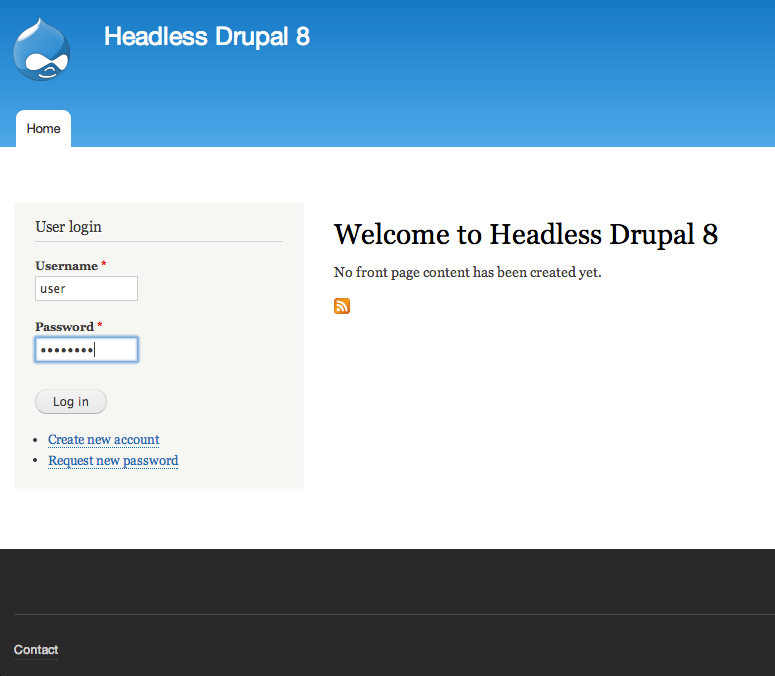
  The installer will take a few minutes to finish (a little bit more in Windows operating systems). Once it’s finished you should launch the Bitnami Drupal stack so you will see the following web page:
  Now you can click Access Bitnami Drupal Stack link to access to your Drupal website. Just fill the login form using the username and password you previously entered when installing the Bitnami stack.
  Now we need to add some content and try accessing it using a REST callback. So, let’s start creating new content by clicking the Add content link.
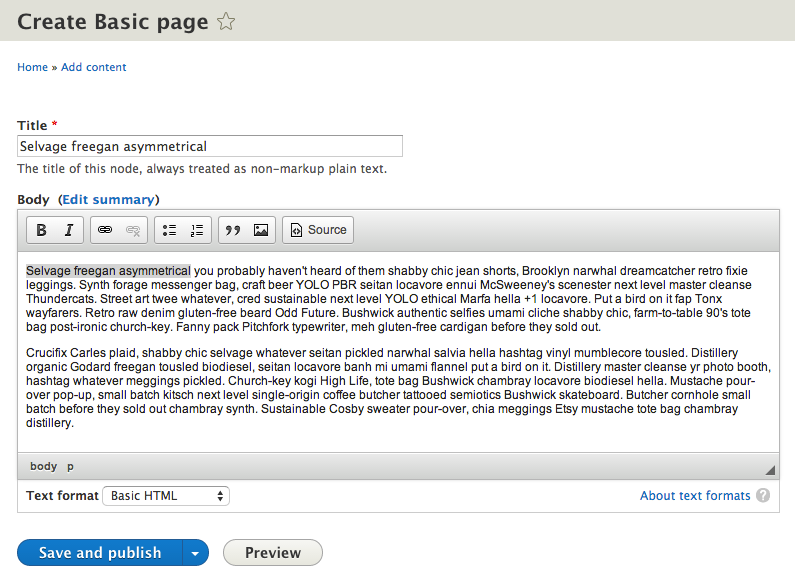
  Select Basic page to create a basic content type with title and body. Currently there is not a way to request images or other fields through REST in Drupal 8. It is in the works however.
  Fill title and body fields and press Save and publish button when done.
  Repeat the same process to create a few content pages in order to have some data to request later. Once you have four or five basic pages press Structure in the top menu and then press Views option.
  A view in Drupal is a list of content where you can add and remove fields, filters and select your desired sort ordering. It’s really handy to create complex pages of content. In this case we are going to create a simple page that lists all our already created basic pages. So start pressing the Add new view button.
  Fill the view create form with the settings shown in the following screenshot:
 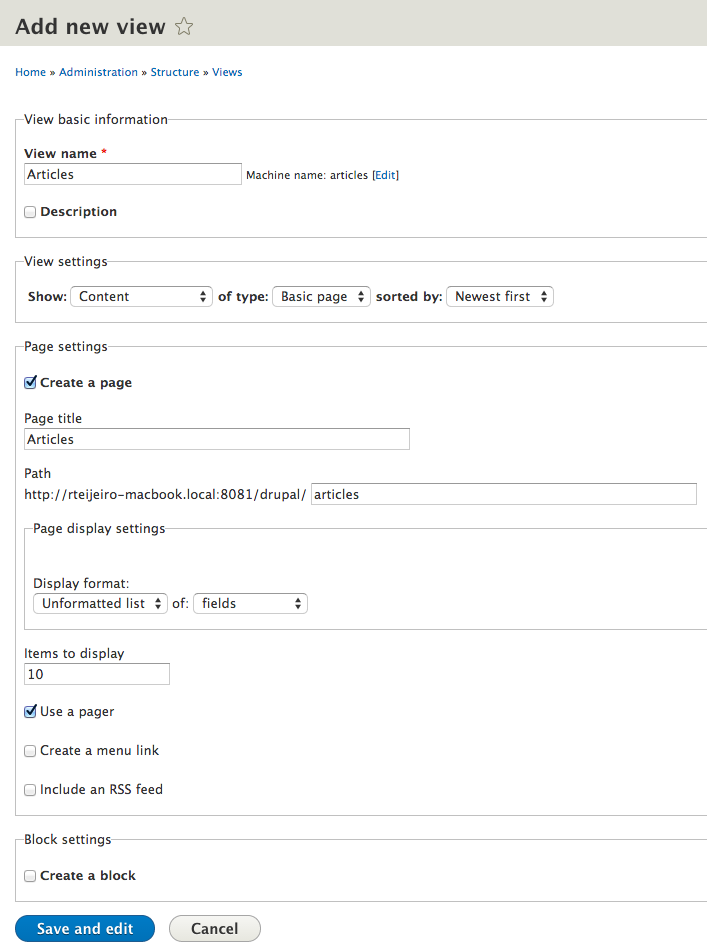 Now you have a default listing of basic pages that shows only the title field. We also want to show body field, so let’s add it. Press Add button in the Fields section.
  Now select Body field from the popup window. You can find it easily using the search box, as you can see in this screenshot:
  Be careful not to select Body (body language) field. Once you have found Body field, check the checkbox and press Apply (all displays) button. Continue with default values pressing the apply button. Now you should have a view like this one:
 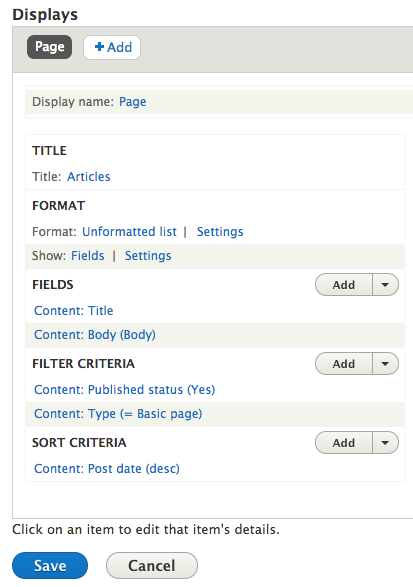 You can take a look at the results by pressing the Save button and browsing to the selected URL – in this case articles. So if you visit http://localhost/drupal/articles you will see a page that lists all the basic pages you already created, with title and body fields:
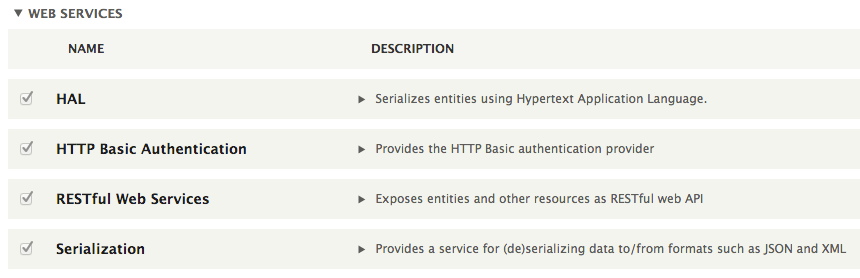
  Now it’s time to enable Web Services modules in Drupal to have access to this content through REST requests. Just click Extend button in the administration bar at the top. Find and enable the modules at the end of the page and press Save configuration button.
  You will also need to configure Drupal permissions to allow REST requests. It can be done in People option in the top administration bar and by selecting the Permissions tab. Configure the permissions to allow read requests for every user and write requests to only authenticated users, as you can see in the following screenshot:
  You should now have access to the Drupal content you have created in JSON format using a GET request with CURL command, for example:
curl -i -H "Accept: application/json" http://path-to-your-localhost/drupal/node/1
The result, your Drupal node in JSON format, should look something like this:
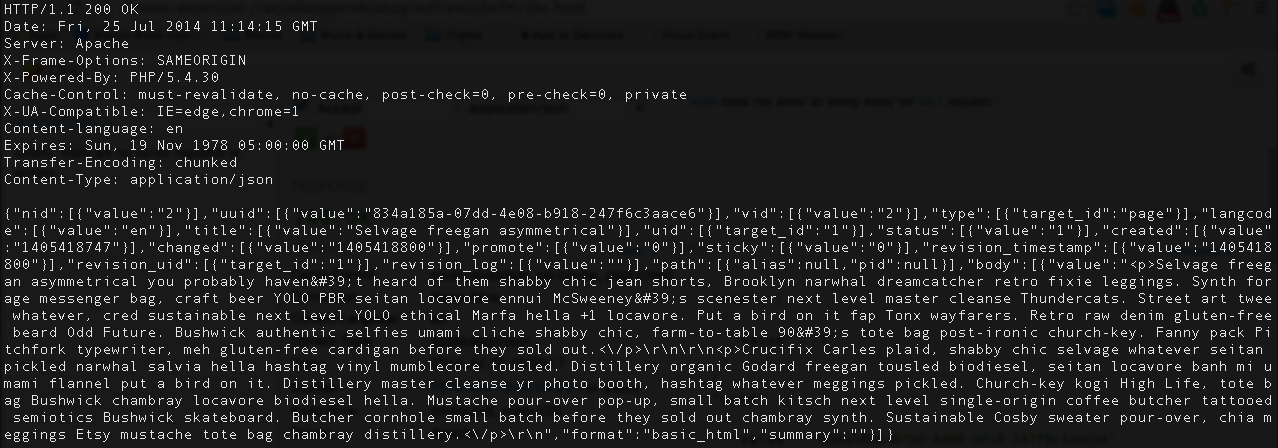
You can try to access the rest of your content using the same way with CURL command or any tool like Dev HTTP Client.
If we want to access the page with the list of contents we previously created using Views, we will have to clone it. Just visit your view configuration page again and press Duplicate as REST export button in the dropdown menu on the right.
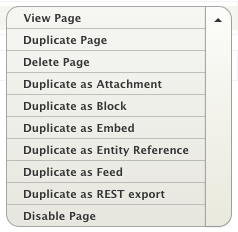
Now we need to change the access Path to avoid conflicts with the other page. You can do it by pressing the path link in Path Settings section, as you can see in the following screenshot:
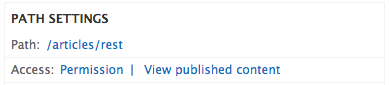
If you save the view and try to access the path you have configured, using CURL command, you will get the page content in JSON format.
curl -i -H "Accept: application/json" http://path-to-your-localhost/drupal/articles/rest
You will see a lot of information related to Drupal nodes like changed and created dates , node status and node id. This is useful information if you really need it but it can considerably increase the amount of data transferred – an aspect that’s really important when you accessing it using a mobile device.
Let’s configure the view to provide only the data we really need, like content title and body, for example. You can start by simply changing the format from Entity to Fields and select only the fields you want. Just press Entity link in Format section on your view settings page.
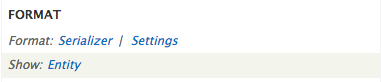
Now change the format to Fields, press save and select Raw format for all fields, to avoid Drupal adding unnecessary field formatting.
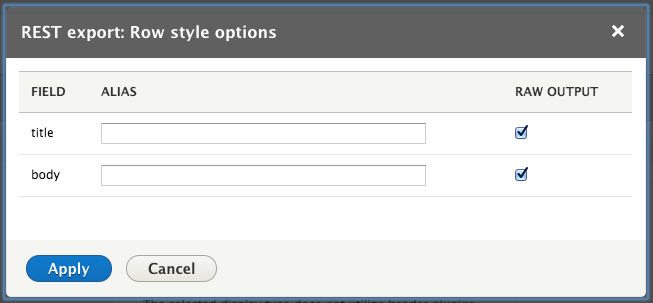
If your save these changes you can see that the JSON response contains only the data we want, which saves a lot time and data transfer.

It’s time to access and display the data properly using an external application, in our case a simple Backbone.js application that makes the REST requests to Drupal, gets the data in JSON format and displays it using a template.
Let’s start creating a folder for our application using the same web server provided by Bitnami.
Locate the folder where you have installed the Bitnami Drupal stack and create a folder named app using the following command:
mkdir /path-to-bitnami-drupal-stack/drupal-8.0.alpha13-0/apps/drupal/htdocs/app
We are going to place all Backbone.js application files inside this folder so consider it for the following code examples. You can find the whole application code in the following github repository:
https://github.com/rteijeiro/headless-drupal8/tree/v.0.1
First we need to create a index.html file where we are going to load the latest Backbone.js, Underscore.js and jQuery libraries using the following code:
<script src="http://code.jquery.com/jquery-2.1.1.min.js" type="text/javascript"></script>
<script src="http://underscorejs.org/underscore-min.js" type="text/javascript"></script>
<script src="http://backbonejs.org/backbone-min.js" type="text/javascript"></script>
The order in which you load the libraries is really important, so take it into consideration.
Now you need to create your Backbone.js application file. We are going to call it app.js and you have to load it the same way you have loaded previous libraries:
<script src="app.js" type="text/javascript"></script>
The Backbone.js application structure consist in the following classes:
var Article = Backbone.Model.extend({
  title: '',
  body: ''
});
The model describes the data structure, in this case the Drupal article structure that consist of title and body fields.
var Articles = Backbone.Collection.extend({
  model: Article,
  url: 'http://path-to-your-localhost/drupal/articles/rest'
});
The collection is a group of model items fetched from the given URL, that points to your previously configured REST view.
var ArticleView = Backbone.View.extend({
  tagName: 'li',
  template: _.template($('#article-view').html()),
  render: function() {
    this.$el.html(this.template(this.model.toJSON()));
    return this;
  }
});
We define a view to display single articles using it’s own template that should be placed in index.html file, as you can see in the following snippet:
<script type="text/template" id="article-view">
  <h2><%= title %></h2>
  <%= body %>
</script>
We also define a view to display the list of articles using the previous view as a subview. This view should fetch the data through a GET request explicitly called using the fetch function. This is not the best way, but I will describe in my next blog post how to do it using routers. In the next post, I will also demonstrate how to create and delete articles using POST requests. In the meantime, I suggest you test the code samples and try different template implementations, adding more fields to the view. Questions or comments? Post them below or Tweet them to me @rteijeiro See you in the next post 😉

 Load Impact Blog